> ## Documentation Index
> Fetch the complete documentation index at: https://docs.maia.ai/llms.txt
> Use this file to discover all available pages before exploring further.
# Azure Marketplace subscription
export const metl = "Matillion ETL";
export const maia = "Maia";
Set up and configure your Azure Marketplace subscription, and subscribe to the **Matillion Data Productivity Cloud** SaaS listing.
Any users with the [Billing](/docs/administration/account-roles#services) service enabled on their {maia} user account can pay via the Azure Marketplace, direct to Matillion, or via the [AWS Marketplace](/docs/administration/aws-marketplace-subscription), once they choose to upgrade to a [paid](/docs/administration/marketplace-subscriptions) plan.
To link your {maia} account to your Azure Marketplace account and use it as a payment method, you're required to subscribe to the Azure listing.
***
## Subscription limitations
Be aware of the following limitations:
* This offering isn't available for subscriptions from Microsoft Azure Cloud Solution Providers.
* An Azure account that's set up as a partner account won't be supported by {maia}. To subscribe to the SaaS listing, a non-partner Azure account will need to be used to pay via Azure.
* Each customer can only have one active marketplace subscription set up at any one time, per account. For example, if your account is connected to the Azure Marketplace, and you try to connect to a different marketplace subscription (such as AWS) an error will occur, and you won't be able to connect to an additional subscription from your account. If you want to subscribe to another payment method, contact your sales representative or [support](/docs/guides/getting-support).
* Matillion's Azure Marketplace integration is designed to allow billing through Azure without sacrificing the power of Matillion's usage aggregation and pricing. This is achieved by computing pricing on the Matillion side, and reporting the total due to Azure Marketplace in the form of a usage-based charge that costs \$0.01 per unit.
***
## Subscribing to Azure Marketplace
Follow the steps below to configure your Azure Marketplace subscription.
1. Launch the [Microsoft Azure Marketplace](https://azuremarketplace.microsoft.com). On the homepage, enter "Matillion" in the search bar, then select **Matillion Data Productivity Cloud** and click **Get it now**.
2. In the **One more thing...** dialog, select the checkbox to accept the terms and conditions, and click **Continue**.
3. Review the information for **Matillion Data Productivity Cloud**, and click **Subscribe**.
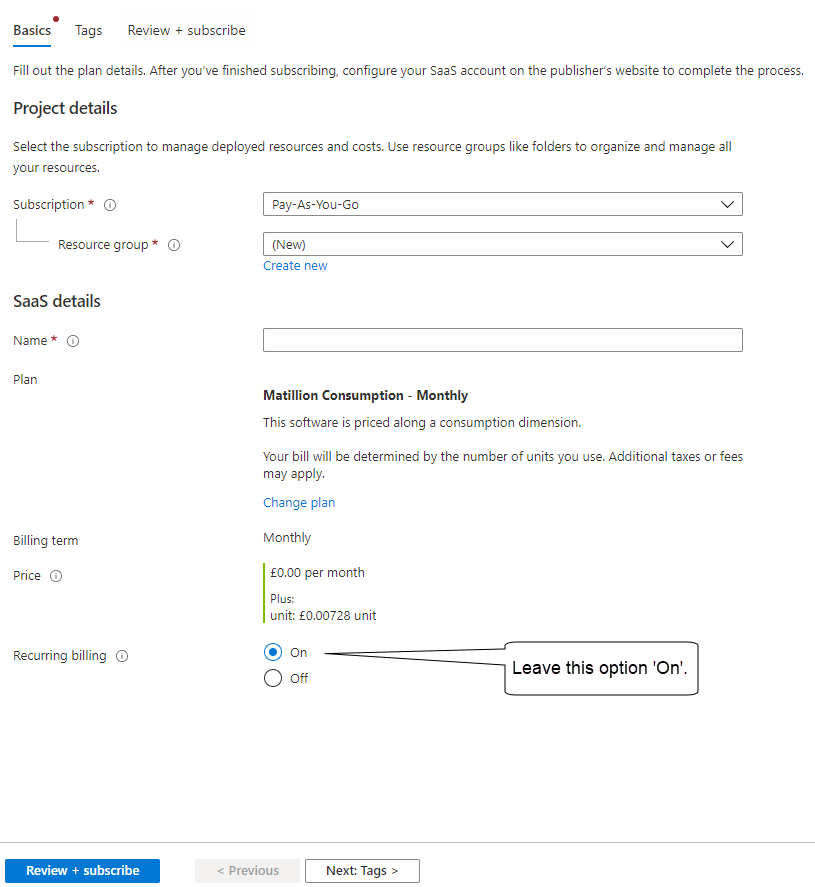
4. On the **Subscribe To Matillion Data Productivity Cloud** page, under **Project details**, select the required **Subscription** payment method, **Resource Group**, and relevant **SaaS details** for your subscription plan. The subscription payment method is used to manage your {metl} instance usage. The [Resource Group](https://learn.microsoft.com/en-us/azure/azure-resource-manager/management/manage-resource-groups-portal) is used to manage access control for administrative purposes, and you can assign Azure policies and roles to these groups. You can create a new resource group using the **Create New** option, if required. Make sure **On** is selected for the **Recurring billing** option, then click **Next: Tags** to proceed.
 5. Apply [tags](https://learn.microsoft.com/en-us/azure/azure-resource-manager/management/tag-resources?tabs=json) to your resource groups to manage your Azure resources, resource groups, and subscription. Select from a pre-defined list of tags you want to apply to your payment subscription. Click **Next: Review + subscribe** to continue.
6. Your subscription plan details are now displayed. Select the **Terms of use** confirmation checkbox, review the details of your new subscription, and click **Subscribe**.
7. At this point, your subscription is now being generated. Review the information on this page. You will see a message stating 'Your subscription is in progress'. It may take several minutes to complete, at which point the **Configure Account Now** button will become active. Click this button to proceed.
To proceed, you can also click **Activate now** in your **Activate your Matillion subscription** email from Microsoft.
8. Both methods described in the previous step will create an Azure Marketplace account. You will be redirected to [{maia}](https://app.matillion.com/hub/), where you can either [register](/docs/administration/registration) for {maia} or, if you are an existing customer, sign in.
When you have logged in to your account, your Azure Marketplace subscription will appear on the SaaS page in the [Microsoft Azure Portal](https://login.microsoftonline.com).
9. Sign in to {maia}. The **My Accounts** page will be displayed, where you will need to select which {maia} account you wish to link to your Azure subscription. Click the intended account. Once your {maia} account is linked, you will be directed to the page where you can [upgrade](/docs/administration/marketplace-subscriptions) your plan, if you wish to self-serve and subscribe.
If you are transacting via a custom deal with our sales team, you don't need to click **Place Order**, and you can begin your {maia} journey.
***
## Unsubscribing from Azure Marketplace
Customers can unsubscribe from their existing Azure Marketplace subscription and arrange to pay for their {maia} account via a different payment method, such as credit card, invoice, or AWS Marketplace. For more information, read [Payment and invoicing](/docs/administration/payment-invoicing).
Follow the steps below to unsubscribe from your Azure Marketplace subscription.
1. Once you are logged in to the [Microsoft Azure Marketplace](https://azuremarketplace.microsoft.com), search and find the subscription you want to unsubscribe from.
* You can filter information based on your resource group or the SaaS listing details name.
2. Select the intended subscription.
3. Click **Cancel subscription** at the top of the page.
4. An overview of your subscription will be displayed. Select the checkbox to confirm you understand the implications of canceling your SaaS subscription. Provide a reason for canceling your subscription using the buttons on the overview page, and include optional information in the **Additional feedback** section. Click **Cancel subscription**.

Failure to select the implication of canceling checkbox and provide a valid reason for cancellation will result in the **Cancel subscription** button not being available.
The **Product and plan details** page will be displayed, confirming your unsubscribed Matillion listing.
5. Apply [tags](https://learn.microsoft.com/en-us/azure/azure-resource-manager/management/tag-resources?tabs=json) to your resource groups to manage your Azure resources, resource groups, and subscription. Select from a pre-defined list of tags you want to apply to your payment subscription. Click **Next: Review + subscribe** to continue.
6. Your subscription plan details are now displayed. Select the **Terms of use** confirmation checkbox, review the details of your new subscription, and click **Subscribe**.
7. At this point, your subscription is now being generated. Review the information on this page. You will see a message stating 'Your subscription is in progress'. It may take several minutes to complete, at which point the **Configure Account Now** button will become active. Click this button to proceed.
To proceed, you can also click **Activate now** in your **Activate your Matillion subscription** email from Microsoft.
8. Both methods described in the previous step will create an Azure Marketplace account. You will be redirected to [{maia}](https://app.matillion.com/hub/), where you can either [register](/docs/administration/registration) for {maia} or, if you are an existing customer, sign in.
When you have logged in to your account, your Azure Marketplace subscription will appear on the SaaS page in the [Microsoft Azure Portal](https://login.microsoftonline.com).
9. Sign in to {maia}. The **My Accounts** page will be displayed, where you will need to select which {maia} account you wish to link to your Azure subscription. Click the intended account. Once your {maia} account is linked, you will be directed to the page where you can [upgrade](/docs/administration/marketplace-subscriptions) your plan, if you wish to self-serve and subscribe.
If you are transacting via a custom deal with our sales team, you don't need to click **Place Order**, and you can begin your {maia} journey.
***
## Unsubscribing from Azure Marketplace
Customers can unsubscribe from their existing Azure Marketplace subscription and arrange to pay for their {maia} account via a different payment method, such as credit card, invoice, or AWS Marketplace. For more information, read [Payment and invoicing](/docs/administration/payment-invoicing).
Follow the steps below to unsubscribe from your Azure Marketplace subscription.
1. Once you are logged in to the [Microsoft Azure Marketplace](https://azuremarketplace.microsoft.com), search and find the subscription you want to unsubscribe from.
* You can filter information based on your resource group or the SaaS listing details name.
2. Select the intended subscription.
3. Click **Cancel subscription** at the top of the page.
4. An overview of your subscription will be displayed. Select the checkbox to confirm you understand the implications of canceling your SaaS subscription. Provide a reason for canceling your subscription using the buttons on the overview page, and include optional information in the **Additional feedback** section. Click **Cancel subscription**.

Failure to select the implication of canceling checkbox and provide a valid reason for cancellation will result in the **Cancel subscription** button not being available.
The **Product and plan details** page will be displayed, confirming your unsubscribed Matillion listing.