> ## Documentation Index
> Fetch the complete documentation index at: https://docs.maia.ai/llms.txt
> Use this file to discover all available pages before exploring further.
# Okta and SAML
This document covers step two of the [Single sign-on (SSO) setup](/docs/administration/single-sign-on) process, and shouldn't be completed independently.
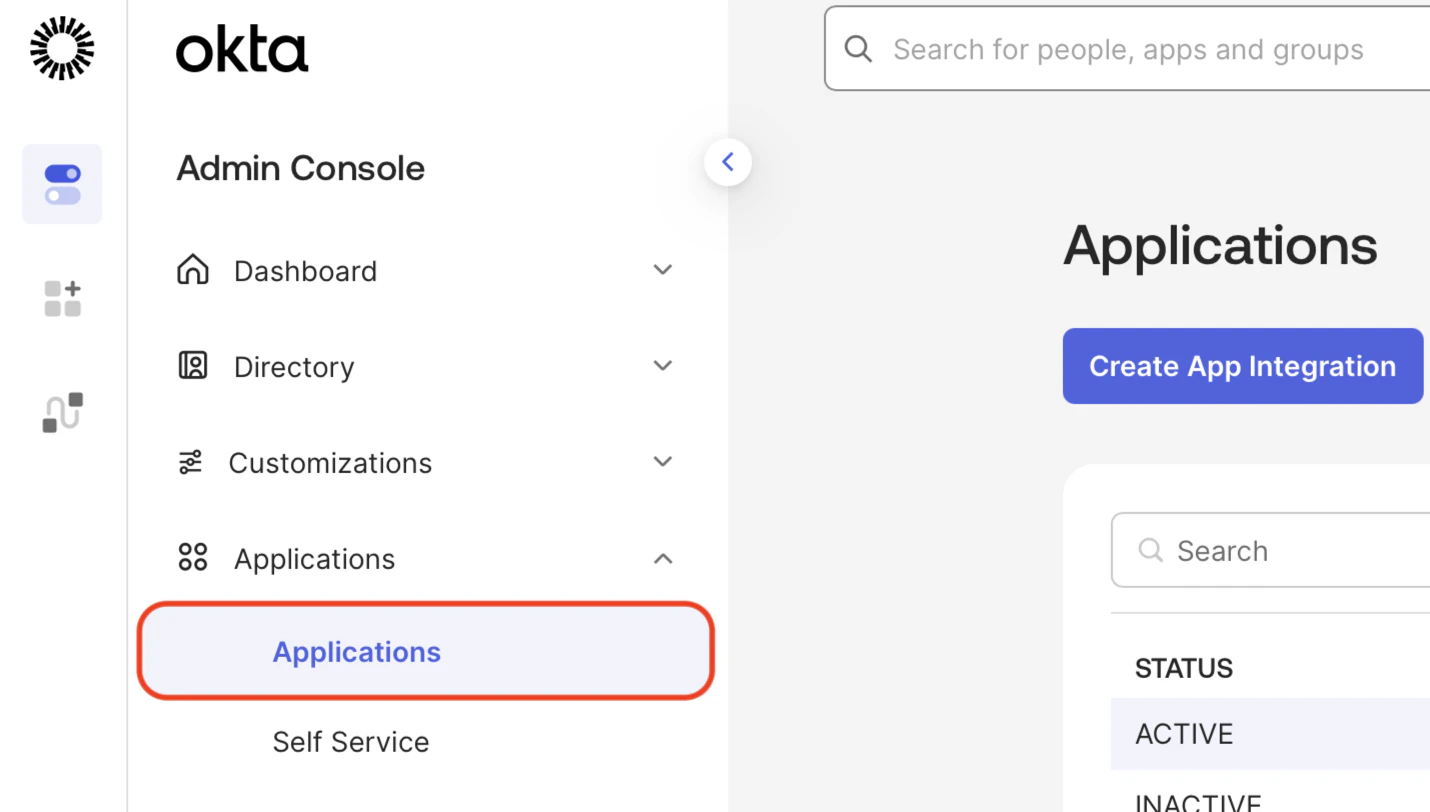
1. Log in to [Okta](https://www.okta.com/), then click **Applications**.
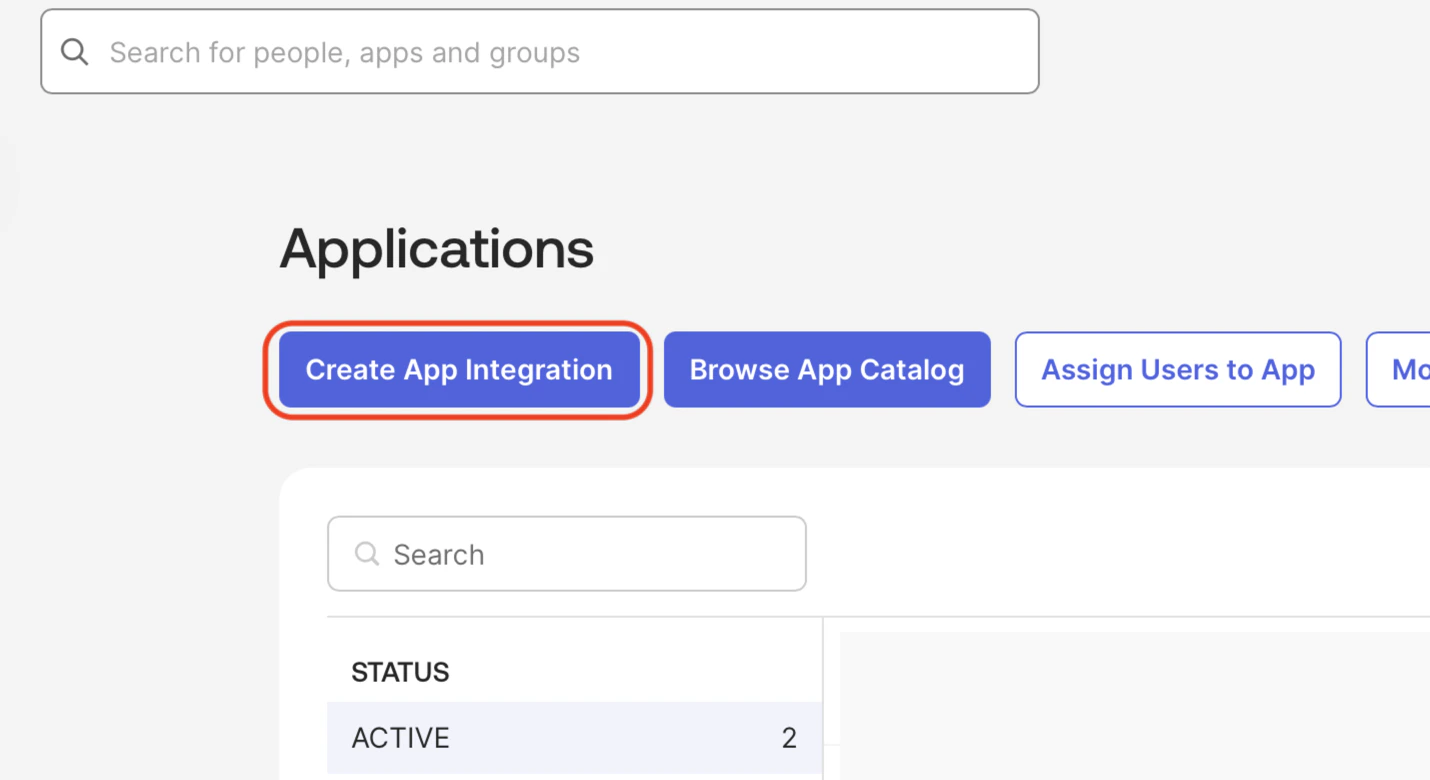
 2. Click the **Create App Integration** button at the top.
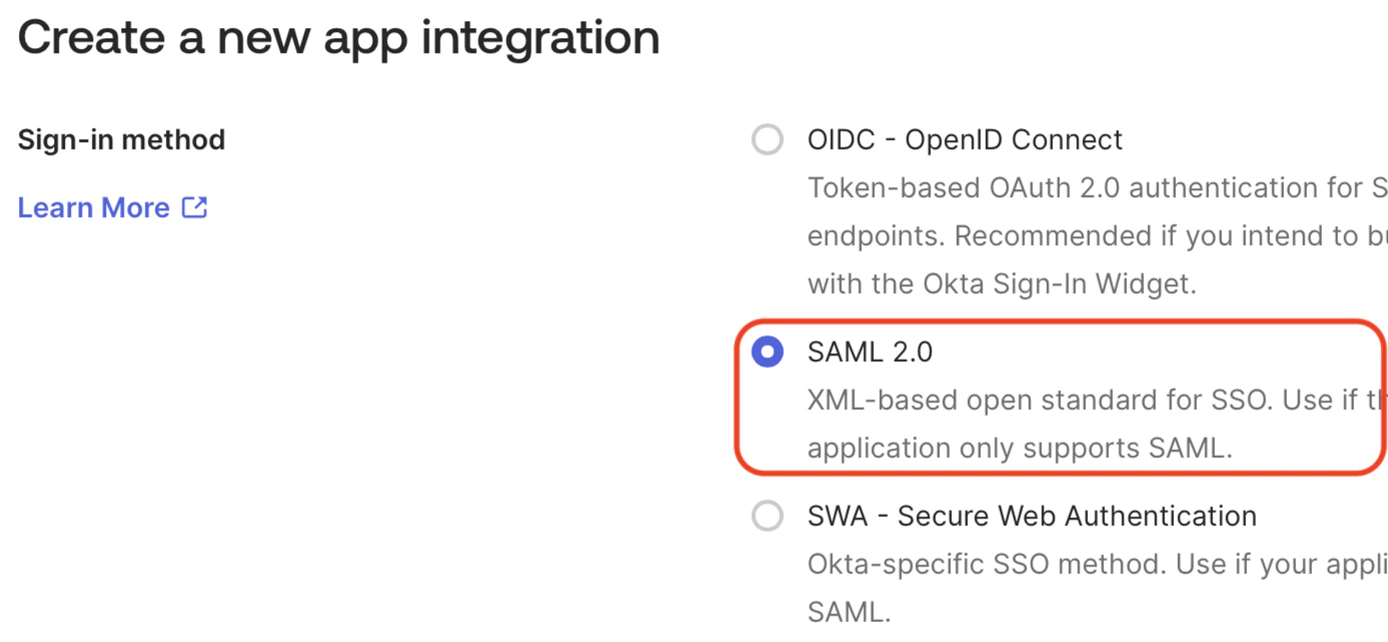
 3. Select the **SAML 2.0** radio button as the sign-on method.
 4. Enter a name for the application, such as `{maia} SSO`, select **Do not display application icon to users**, and click **Next**.
 There are optional steps at the end of this document if you want to add an icon for users. The icon for the application itself must always be hidden, as using it will attempt an IdP Initiated connection, which is not allowed for security reasons.
5. Enter the following:
* **Single sign on URL:** `https://id.matillion.com/login/callback`.
* **Audience URI (SP Entity ID):** `urn:auth0:matillion:[domain]-saml` replacing `[domain]` with your primary email domain, and converting any special characters to dashes. For instance `example.com` would become `urn:auth0:matillion:example-com-saml`.
* Leave the other fields blank, and click **Next**.
There are optional steps at the end of this document if you want to add an icon for users. The icon for the application itself must always be hidden, as using it will attempt an IdP Initiated connection, which is not allowed for security reasons.
5. Enter the following:
* **Single sign on URL:** `https://id.matillion.com/login/callback`.
* **Audience URI (SP Entity ID):** `urn:auth0:matillion:[domain]-saml` replacing `[domain]` with your primary email domain, and converting any special characters to dashes. For instance `example.com` would become `urn:auth0:matillion:example-com-saml`.
* Leave the other fields blank, and click **Next**.
 The **Relay State** will be provided by {maia} later, and will be added here before testing. No other configuration should be changed at that stage.
6. Ensure the **Application username** is mapped to a value that is unique to each user and immutable.
The **Relay State** will be provided by {maia} later, and will be added here before testing. No other configuration should be changed at that stage.
6. Ensure the **Application username** is mapped to a value that is unique to each user and immutable.
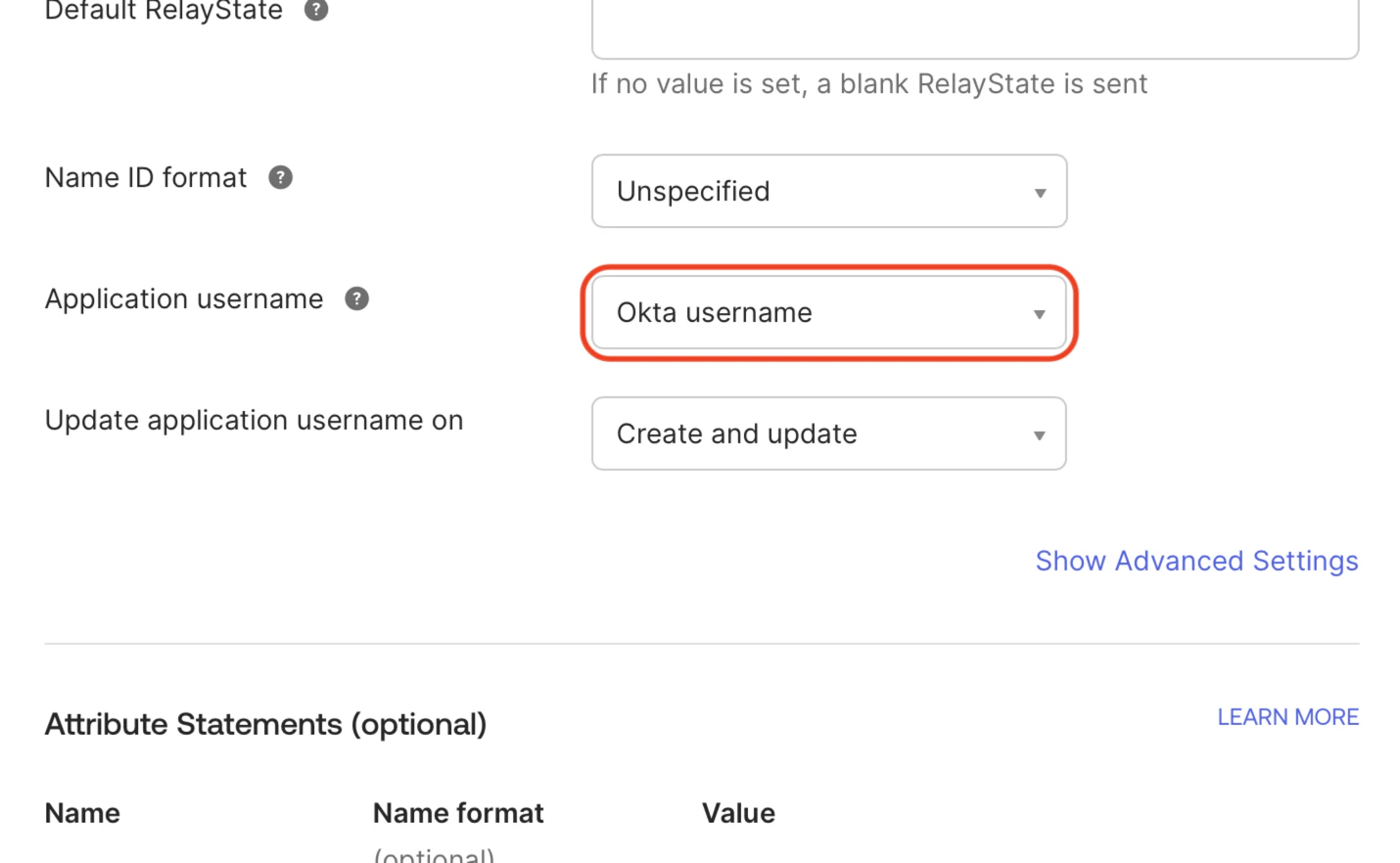 The default value, Okta username, is usually an email address and should not be used. The value chosen here is used internally by the identity provider as the NameID to uniquely identify users. It is never visible in either system, and users will always sign in using their email address regardless of this setting.
Leaving the default value unchanged can cause problems if it is modified in the future. If that happens, {maia} will treat the user as a new account, which results in the loss of the original user profile.
Any value that is unique to each user and guaranteed to remain unchanged can be used. Because every configuration is different, Matillion can't provide guidance on creating a unique attribute in Okta. However, you can verify the exact value being sent during the testing phase, before the configuration is activated and impacts user logins.
7. Add the following five entries in the **Attribute Statements (optional)** section.
The default value, Okta username, is usually an email address and should not be used. The value chosen here is used internally by the identity provider as the NameID to uniquely identify users. It is never visible in either system, and users will always sign in using their email address regardless of this setting.
Leaving the default value unchanged can cause problems if it is modified in the future. If that happens, {maia} will treat the user as a new account, which results in the loss of the original user profile.
Any value that is unique to each user and guaranteed to remain unchanged can be used. Because every configuration is different, Matillion can't provide guidance on creating a unique attribute in Okta. However, you can verify the exact value being sent during the testing phase, before the configuration is activated and impacts user logins.
7. Add the following five entries in the **Attribute Statements (optional)** section.
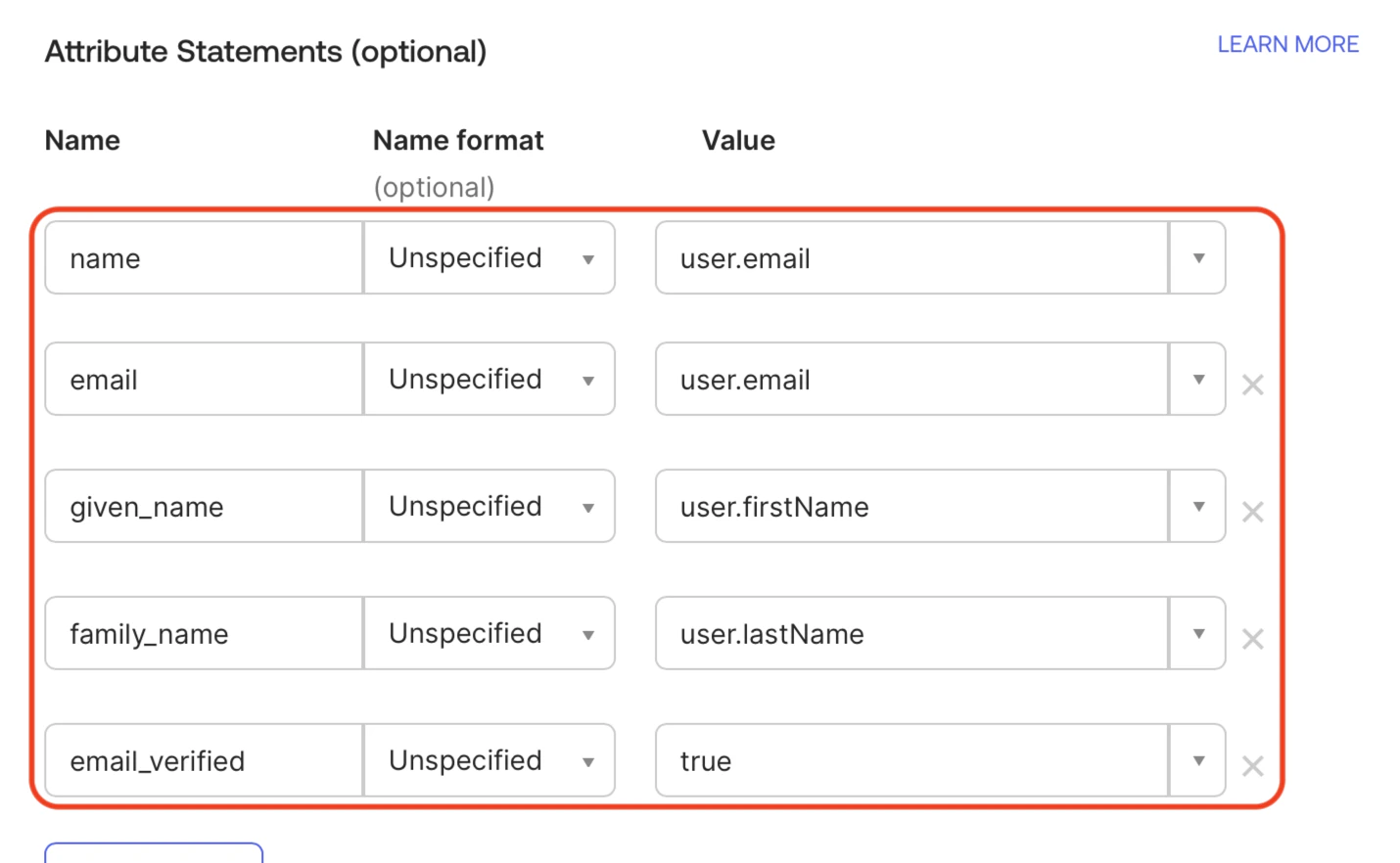 The **email\_verified** attribute ensures that users aren't prompted to verify their email address with {maia}.
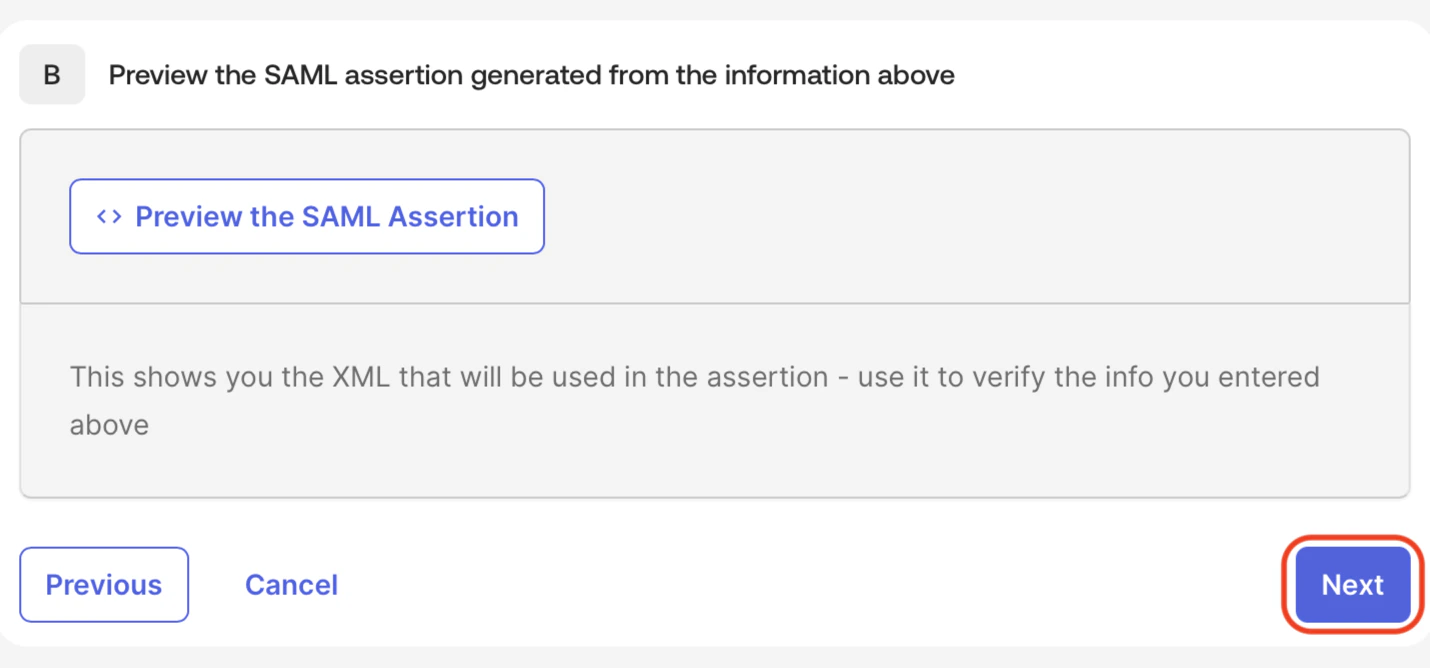
8. Scroll down to the bottom, and click **Next**.
The **email\_verified** attribute ensures that users aren't prompted to verify their email address with {maia}.
8. Scroll down to the bottom, and click **Next**.
 9. If requested, complete the Okta feedback form, and click **Finish**.
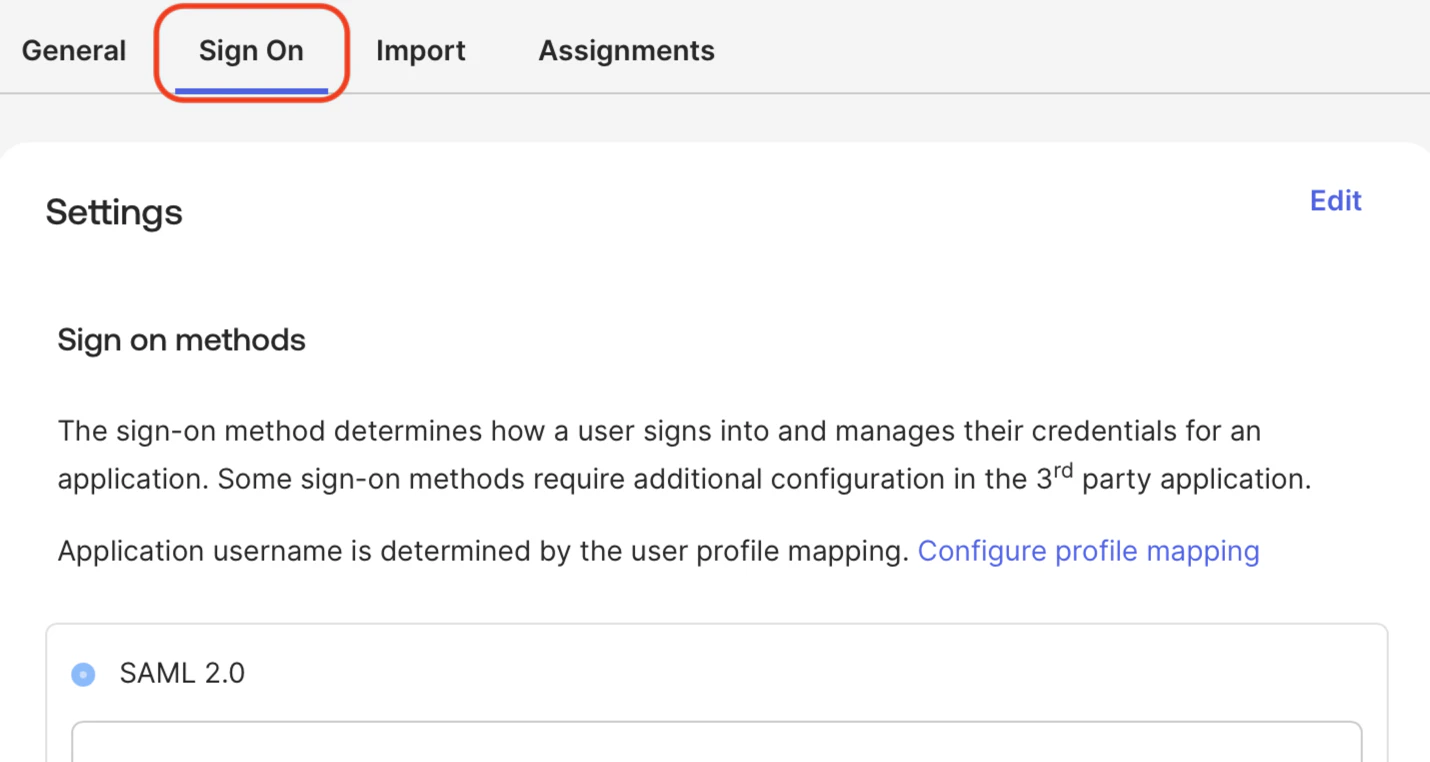
10. Ensure the **Sign On** tab is open.
9. If requested, complete the Okta feedback form, and click **Finish**.
10. Ensure the **Sign On** tab is open.
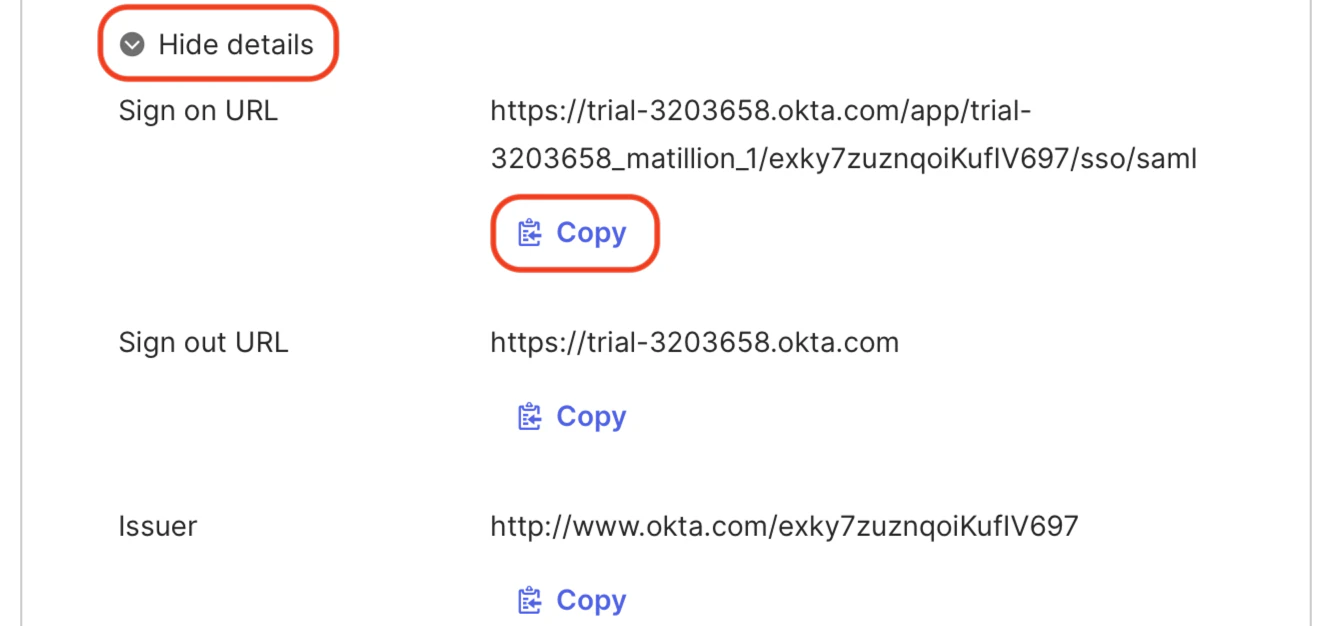
 11. Click **More details**, click the **Copy** button under **Sign on URL**, and make a note of this for later.
 12. Scroll down to the bottom of the page, click on the **Actions** menu next to the **Active** certificate, and click **Download certificate**.
 This is not the same as the signing certificate available for download above.
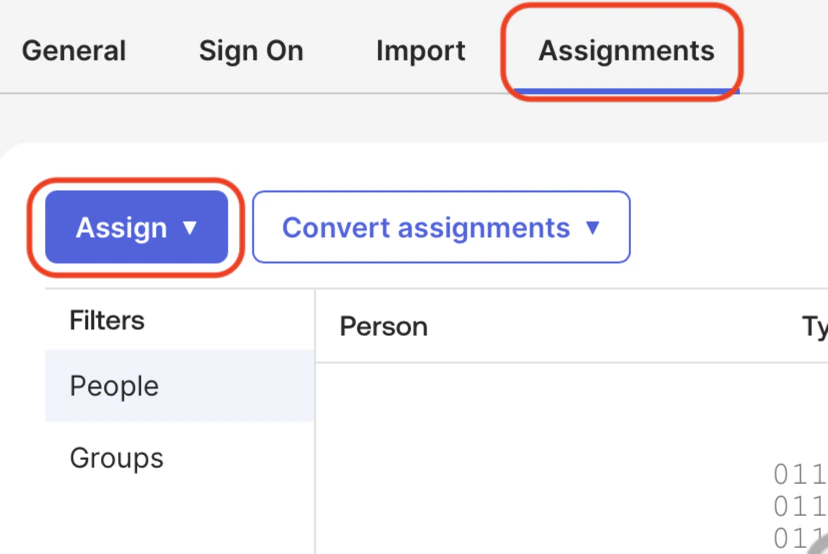
13. Open the **Assignments** tab, click **Assign**, and follow the prompts to assign users or groups to the application as needed.
This is not the same as the signing certificate available for download above.
13. Open the **Assignments** tab, click **Assign**, and follow the prompts to assign users or groups to the application as needed.
 14. Continue the steps in [Single sign-on (SSO) setup](/docs/administration/single-sign-on).
***
## Configure an Okta application icon (optional)
Follow these steps to add an application icon so users can access {maia} from their Okta dashboard. If you don't require an application icon, skip this section and continue with [Single sign-on (SSO) setup](/docs/administration/single-sign-on).
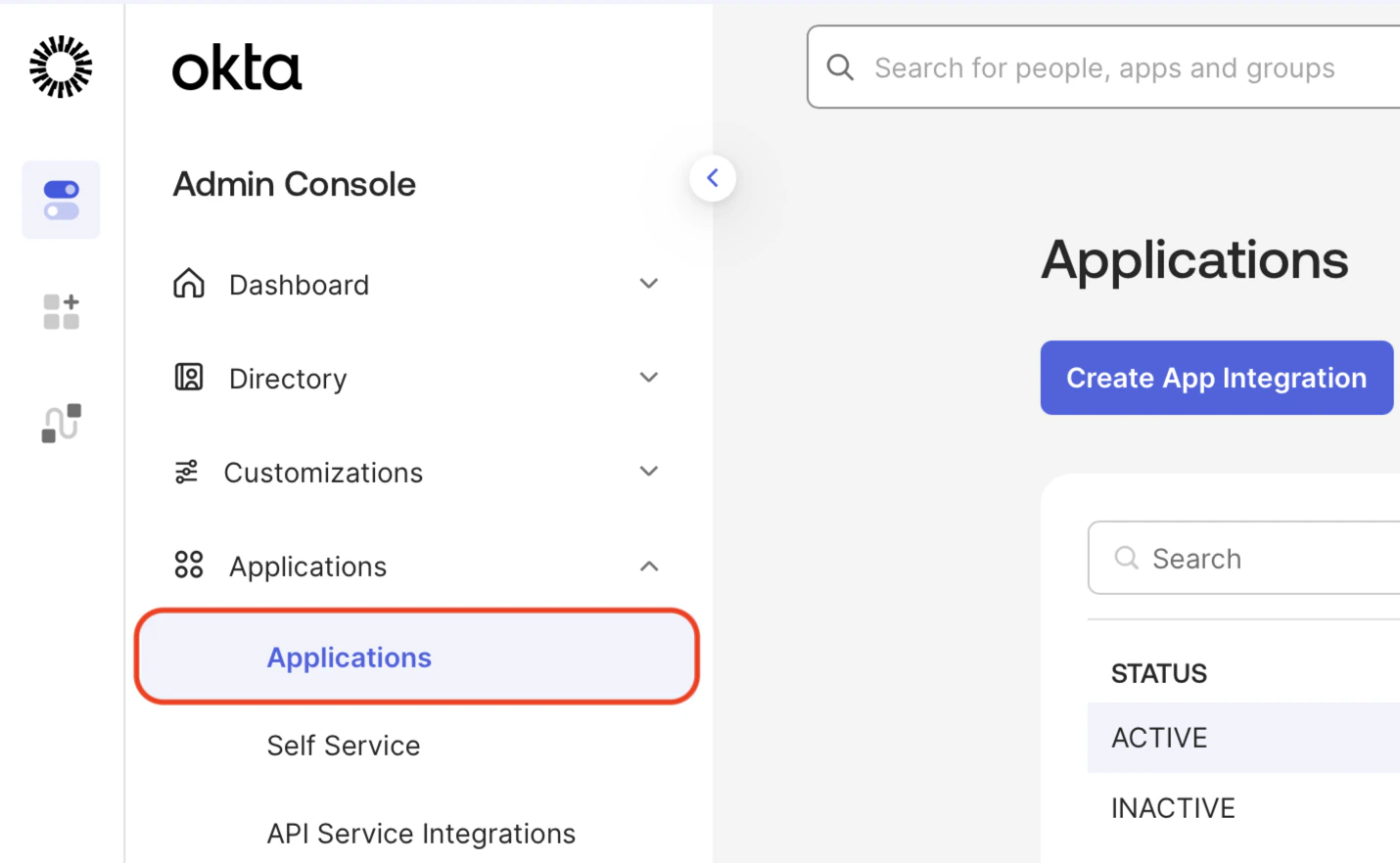
1. Click **Applications**.
14. Continue the steps in [Single sign-on (SSO) setup](/docs/administration/single-sign-on).
***
## Configure an Okta application icon (optional)
Follow these steps to add an application icon so users can access {maia} from their Okta dashboard. If you don't require an application icon, skip this section and continue with [Single sign-on (SSO) setup](/docs/administration/single-sign-on).
1. Click **Applications**.
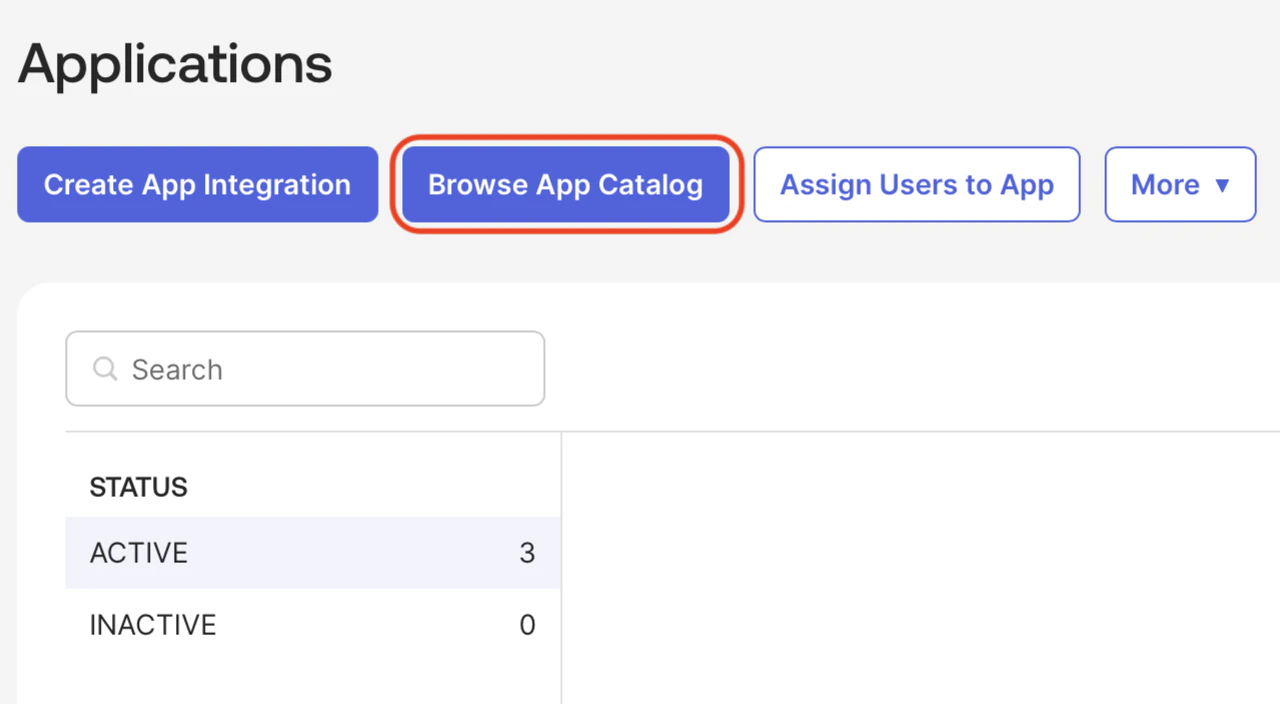
 2. Click **Browse App Catalog**.
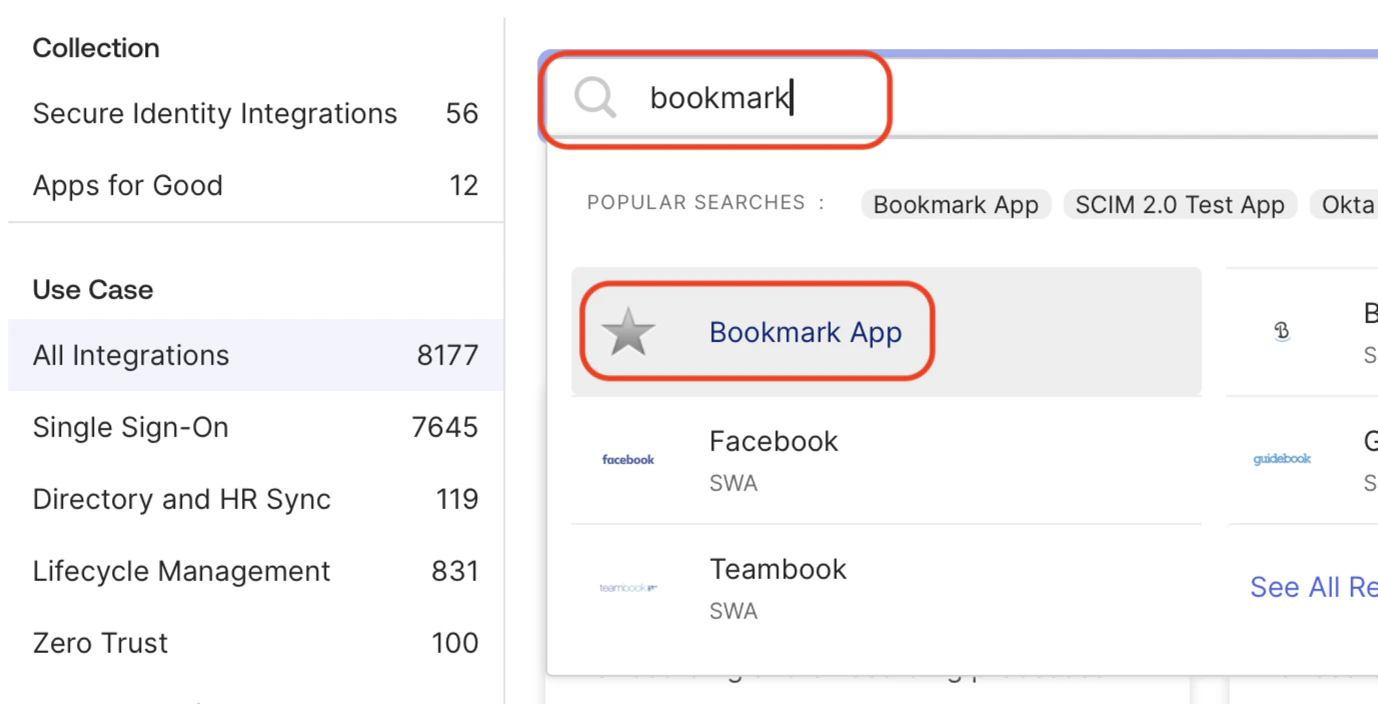
 3. Enter **bookmark** in the search field, and click **Bookmark App**.
 4. Click **Add Integration**.
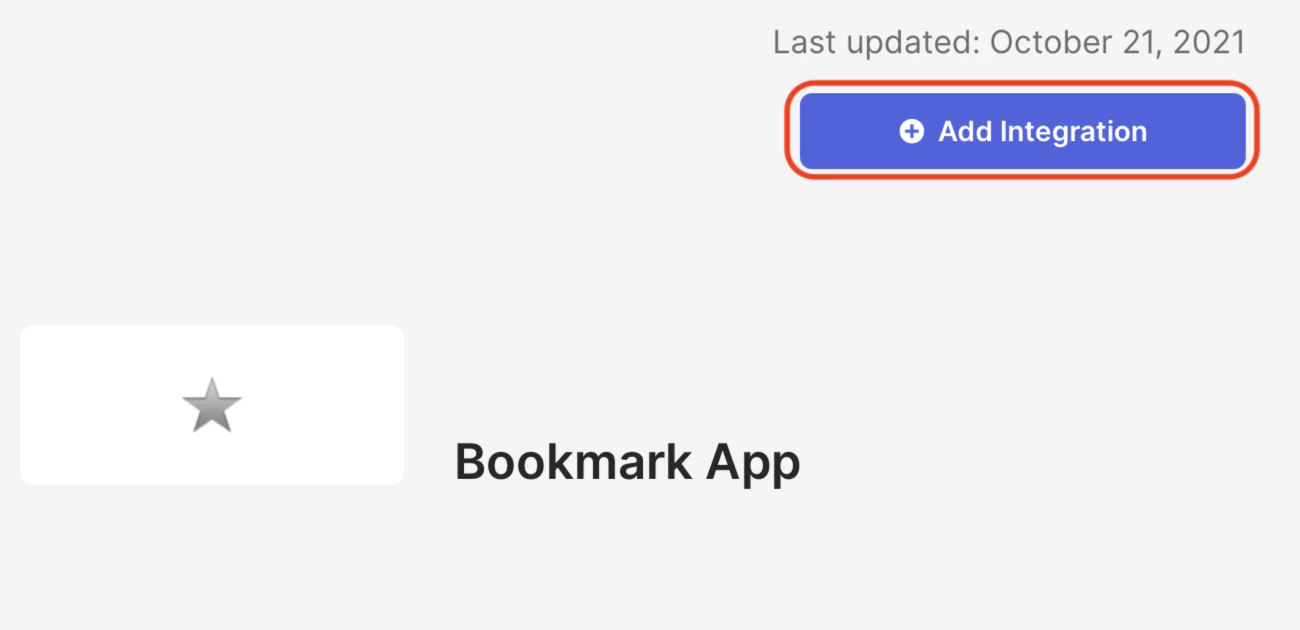 5. Enter an **Application label** and the URL `https://app.matillion.com`.
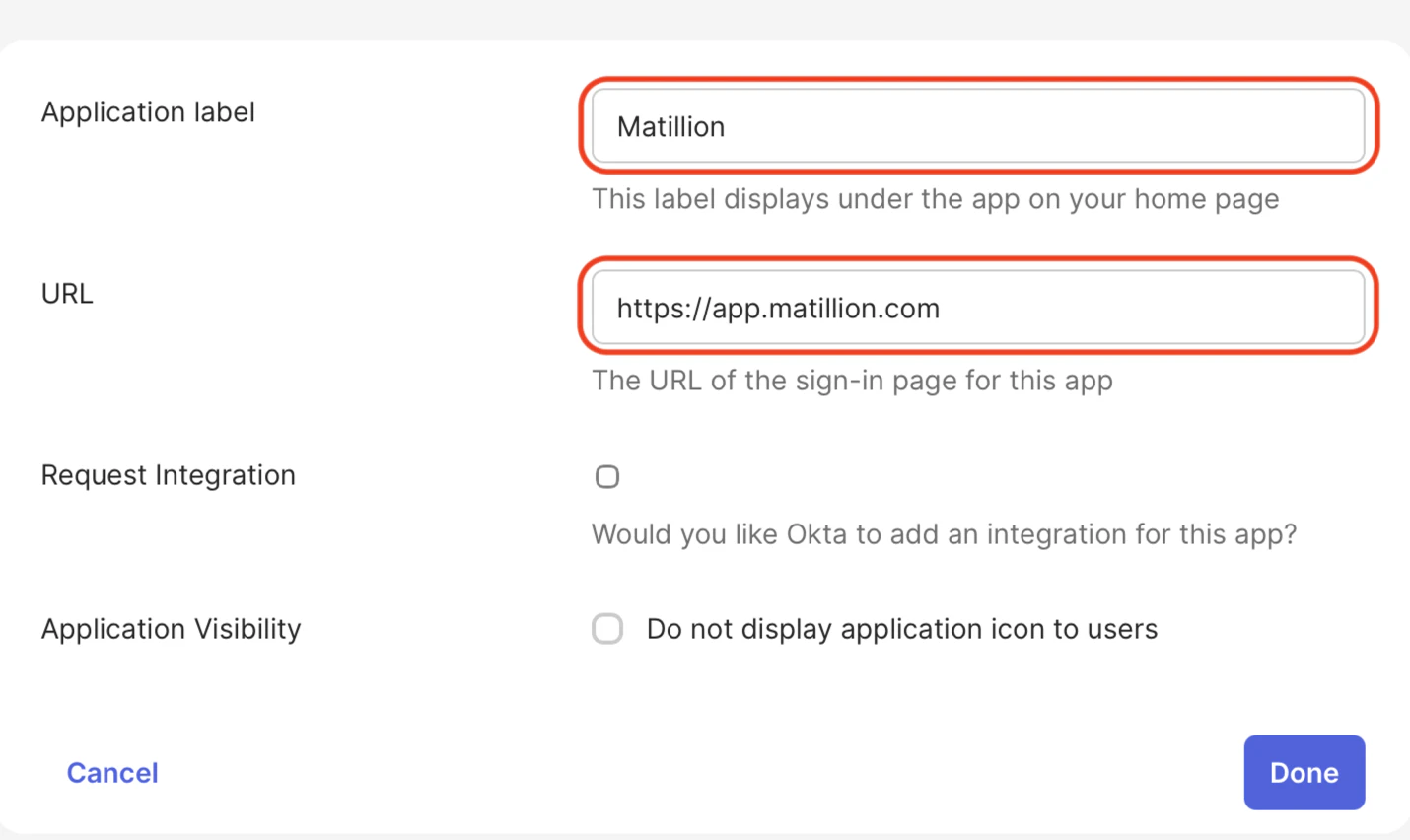 6. Select the bookmark from the list of applications, which will be shown with a star icon.
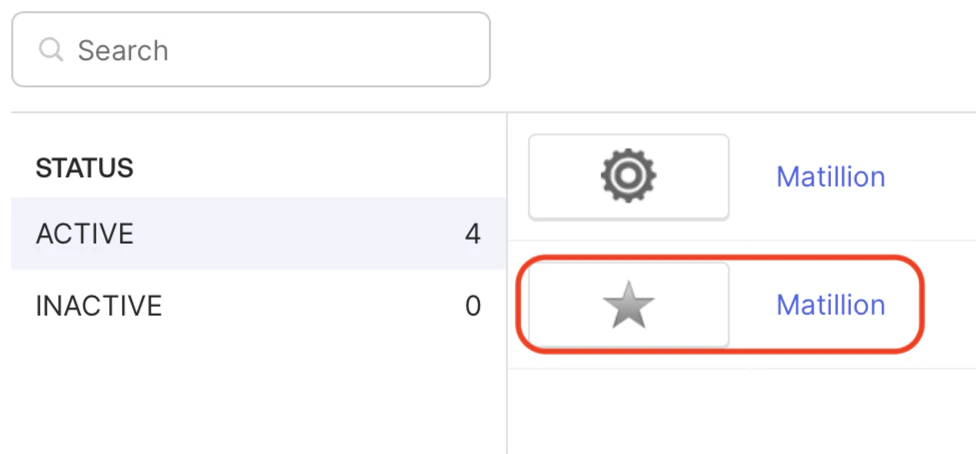 7. Click on the icon.
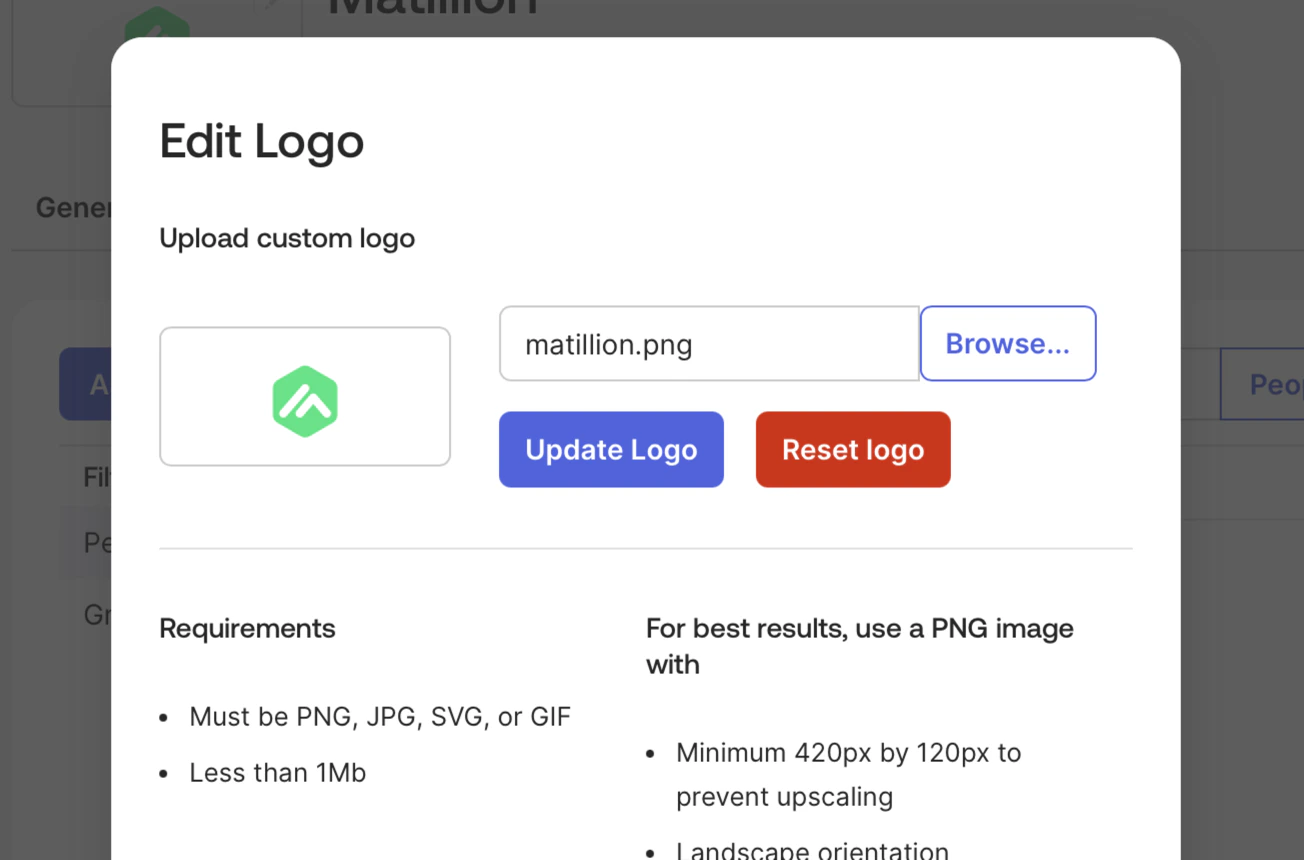
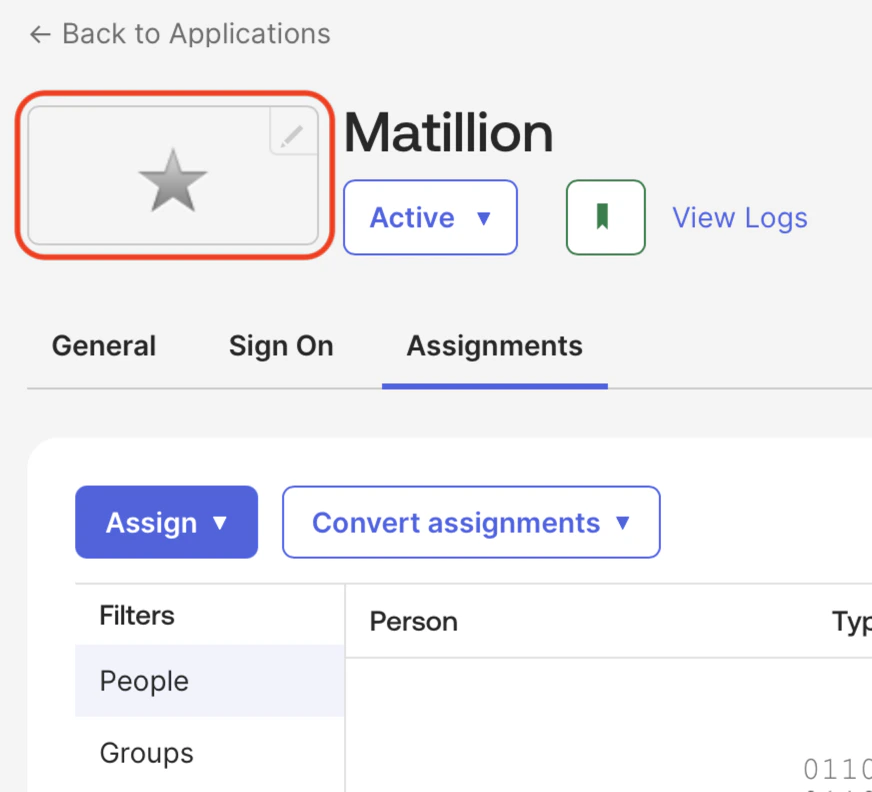 8. Upload an icon for the application, such as [matillion.png](https://matillion-docs.s3.eu-west-1.amazonaws.com/Attachments/sso-docs/matillion.png).
 9. Continue the steps in [Single sign-on (SSO) setup](/docs/administration/single-sign-on).