> ## Documentation Index
> Fetch the complete documentation index at: https://docs.maia.ai/llms.txt
> Use this file to discover all available pages before exploring further.
# Generating a Personal Access Token
export const maia = "Maia";
**Deprecation notice**
For GitHub repositories, {maia} now uses GitHub App authentication, which means a Personal Access Token is no longer required. This page is retained for reference purposes only.
A fine-grained personal access token (PAT) from a Git provider (such as GitHub) can be used to authenticate and perform actions based on the scopes or permissions defined on the token itself.
During the creation process, the scopes or permissions of the token can limit the actions to only those necessary for the intended purpose, such as reading repository information. As well as this, the lifetime of the token is configurable, to ensure they are only valid for as long as necessary.
The details of a repository are required as part of setting up a project within {maia}. This information is gathered from the Git provider, which is normally handled after the user has authenticated with the provider. However, since that process requires visiting the UI, this alternative solution ensures that authentication can be completed exclusively through the Public API.
This process **only** needs to be followed by the person who is responsible for setting up the project in {maia} through the Public API. Other users who will be designing pipelines within this project after creation **do not** need to follow this process.
***
## Generating a fine-grained access token
1. Log in to your GitHub account.
2. Click on your profile and navigate to **Settings**.
3. Click **Developer settings**.
4. Click **Personal access tokens**, then click **Fine-grained tokens**.
5. Click **Generate new token**.
6. Enter a name and/or description for the token to help you identify it.
7. Choose a suitable expiration date, and the intended repositories to use.
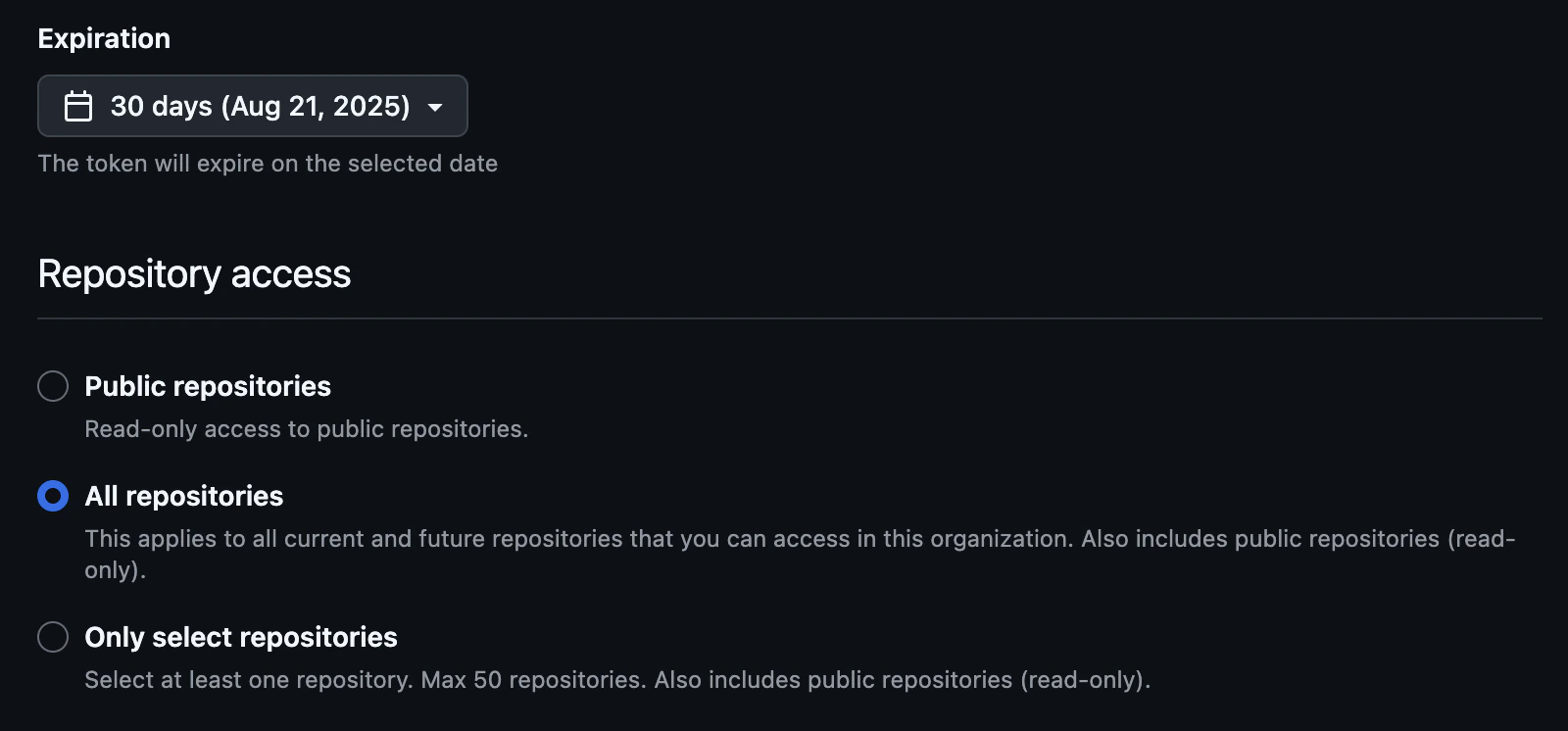 8. Select the minimum **read-only** permissions that {maia} requires.

 9. Click **Generate token**
10. Ensure that you copy and securely store the token—GitHub will **not** show it again.
***
## Best practices and security considerations
The Personal Access Token should be stored in a suitable location such as a password manager or encrypted vault, as per your organizational security policy. The token provided in the request will **not** be stored by Matillion.
Once the token has served its purpose to set up the repository information on the project, the token can either:
* Be left to expire as per the expiration date set when creating the token.
* Be manually revoked within the Git provider.
***
## Additional resources
[GitHub Docs for PAT Authentication](https://docs.github.com/en/rest/authentication/authenticating-to-the-rest-api?apiVersion=2022-11-28#authenticating-with-a-personal-access-token)
9. Click **Generate token**
10. Ensure that you copy and securely store the token—GitHub will **not** show it again.
***
## Best practices and security considerations
The Personal Access Token should be stored in a suitable location such as a password manager or encrypted vault, as per your organizational security policy. The token provided in the request will **not** be stored by Matillion.
Once the token has served its purpose to set up the repository information on the project, the token can either:
* Be left to expire as per the expiration date set when creating the token.
* Be manually revoked within the Git provider.
***
## Additional resources
[GitHub Docs for PAT Authentication](https://docs.github.com/en/rest/authentication/authenticating-to-the-rest-api?apiVersion=2022-11-28#authenticating-with-a-personal-access-token)