
This document covers step two of the Single sign-on (SSO) setup process, and shouldn’t be completed independently.
-
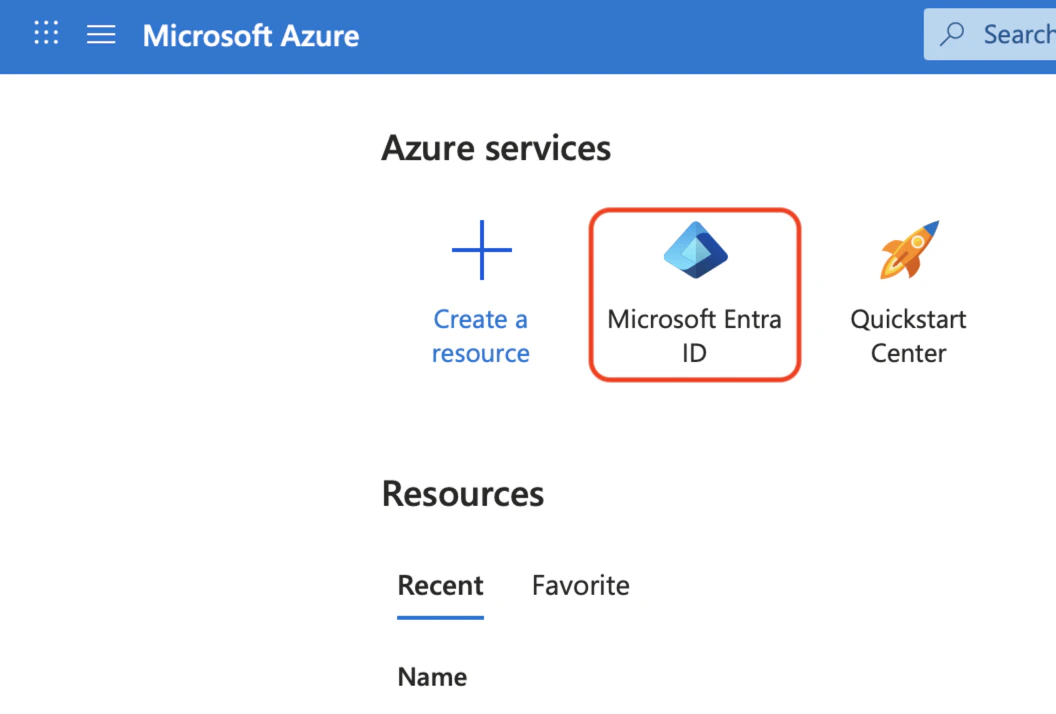
Log in to the Microsoft Azure portal, and click Microsoft Entra ID.
-
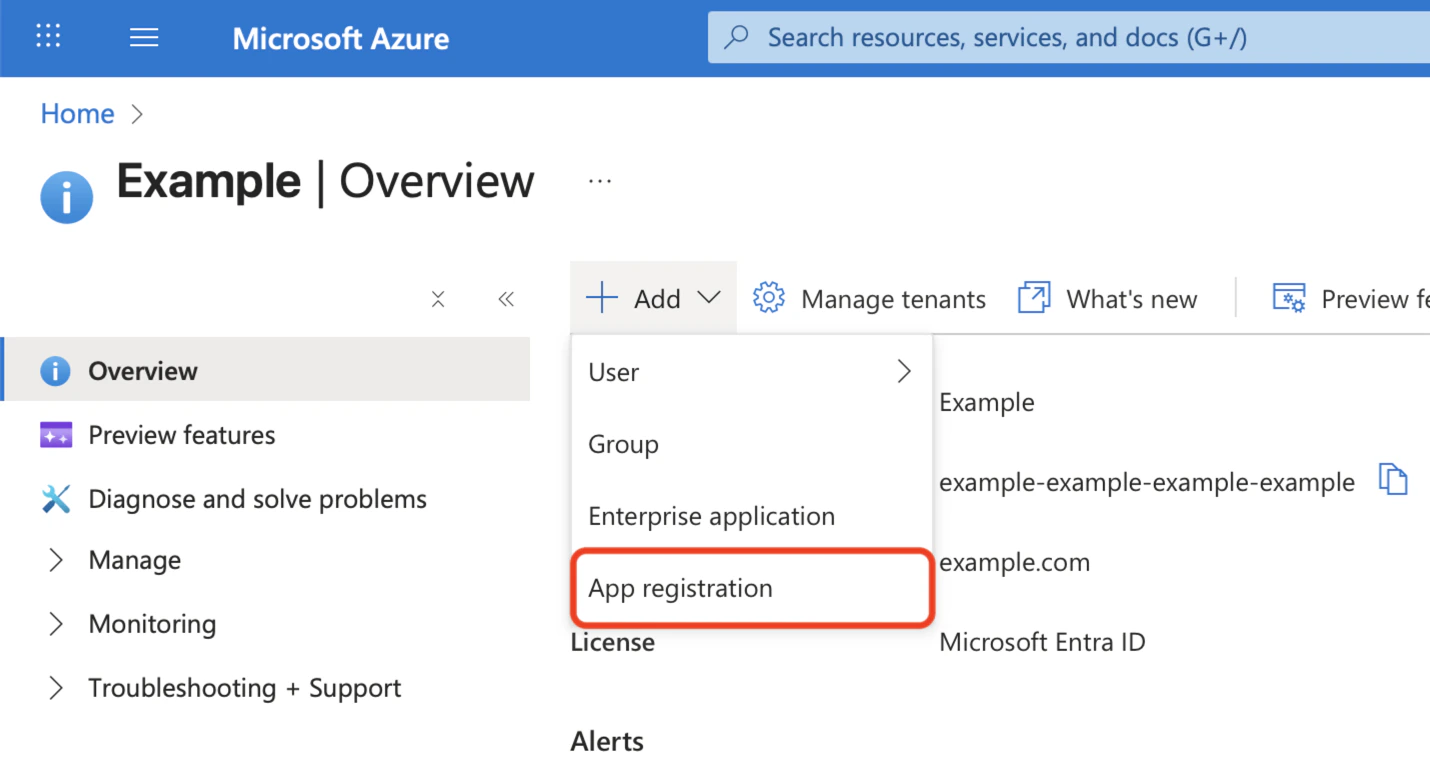
At the top of the Overview page, click the Add menu, and select App registration.
-
Enter a Name for the application, such as
{maia}.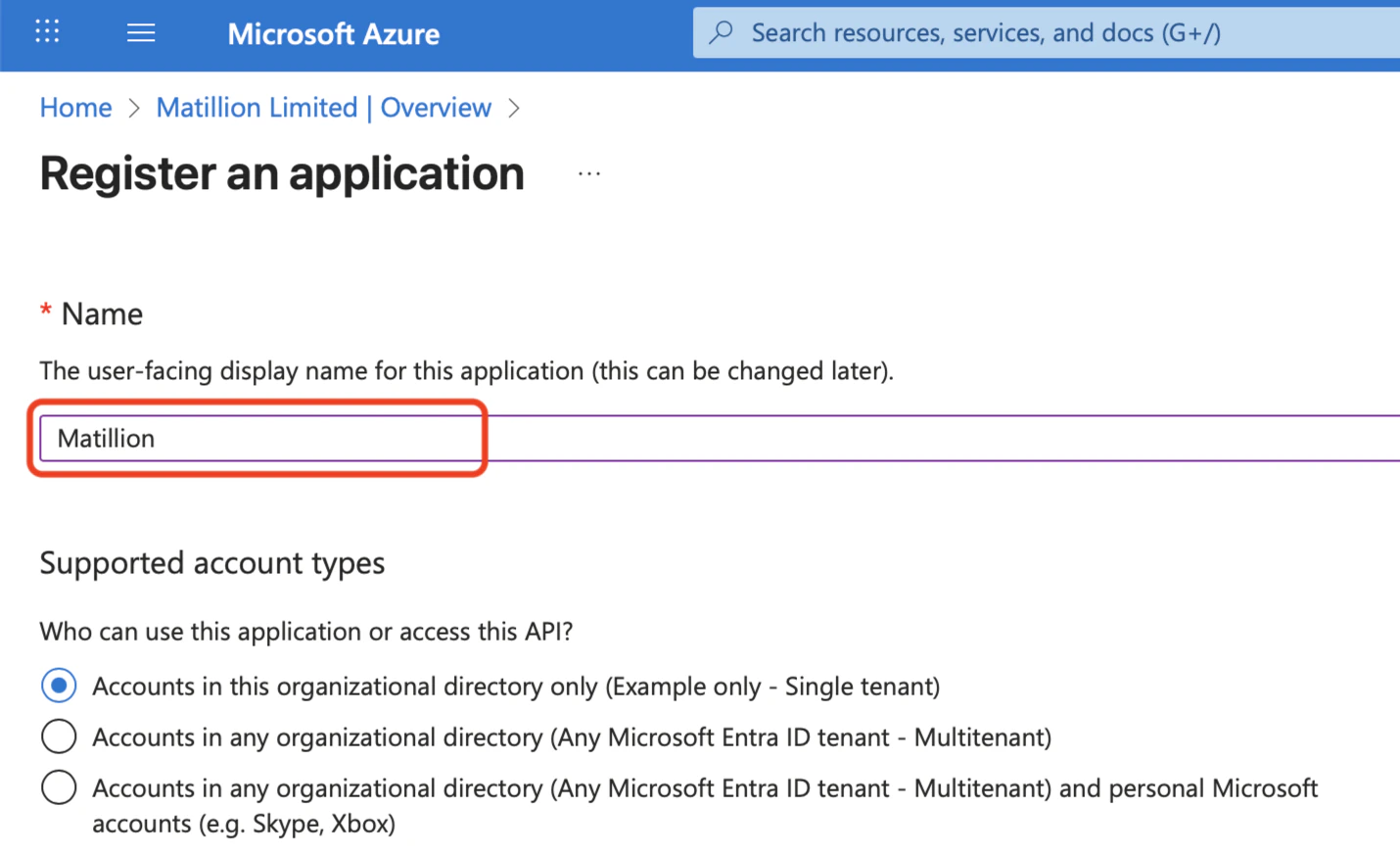
-
Select Web from the drop-down in the Redirect URI (optional) section, enter https://id.matillion.com/login/callback as the value, and click Register.
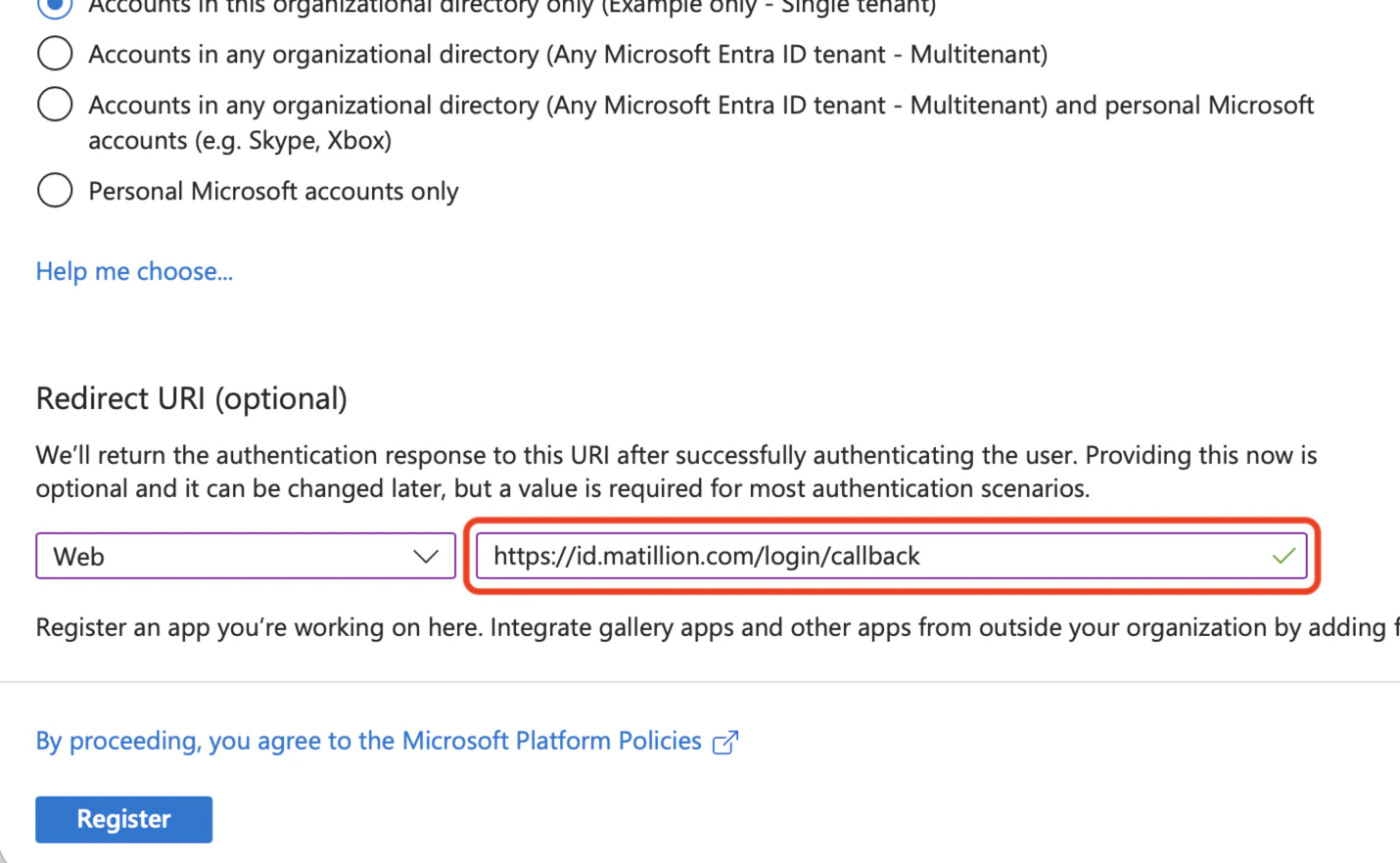
id.matillion.comis Matillion’s authentication domain for single sign-on (SSO). Enter this URL in your identity provider’s configuration as instructed—users should not navigate to it directly, as authentication must be initiated through your identity provider or the Maia login page. -
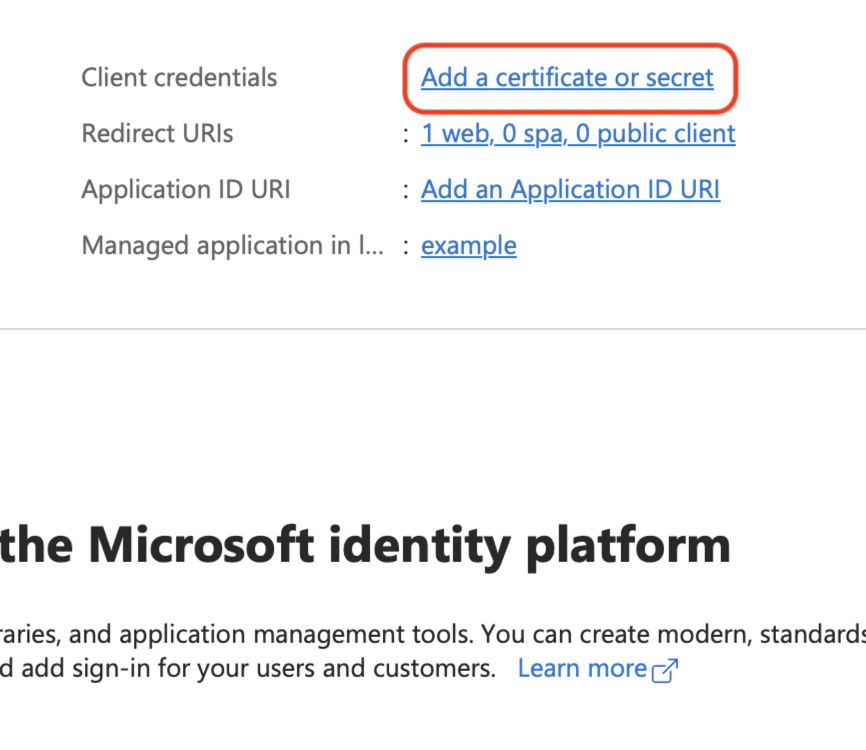
Click the Add a certificate or secret link.
-
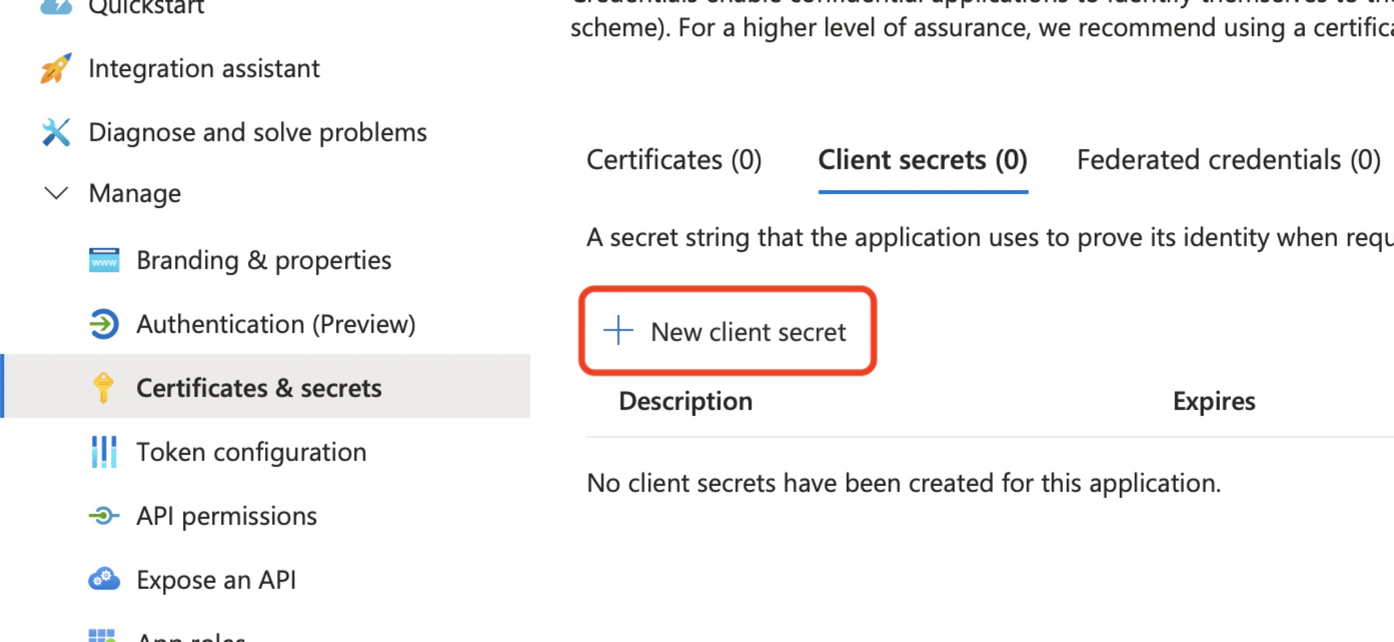
Select Certificates & secrets from the expanded Manage menu, then click New client secret.
-
Enter a description, such as
{maia}, set an expiry date, and click Add. Contact us to arrange for the secret to be rotated before the existing one expires to avoid minimal interruption to your users.
 -
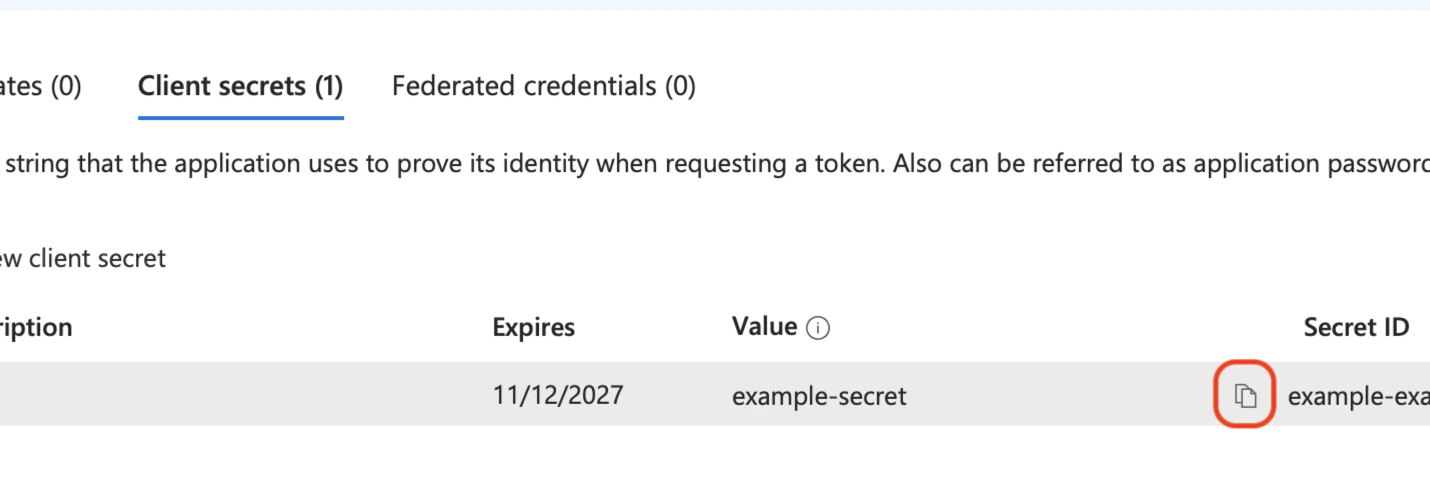
Copy the value of the Secret, and make a note of it somewhere you can refer to later.
-
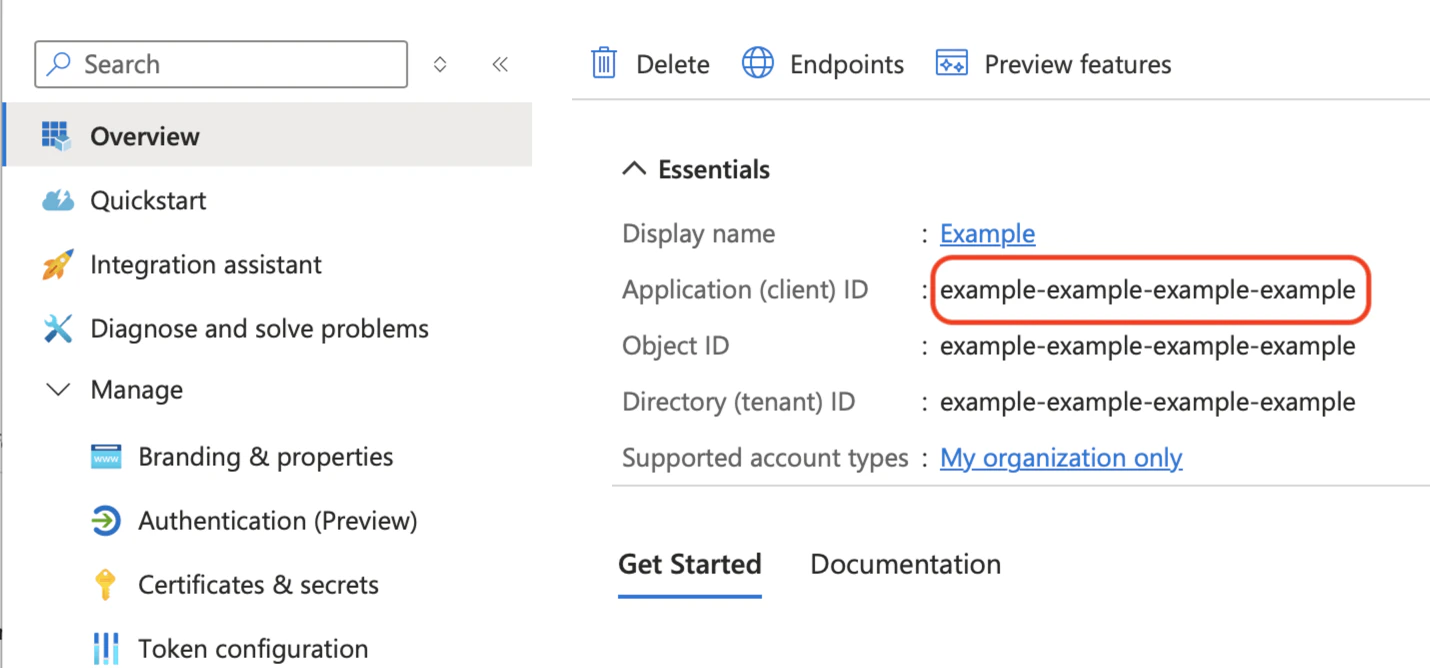
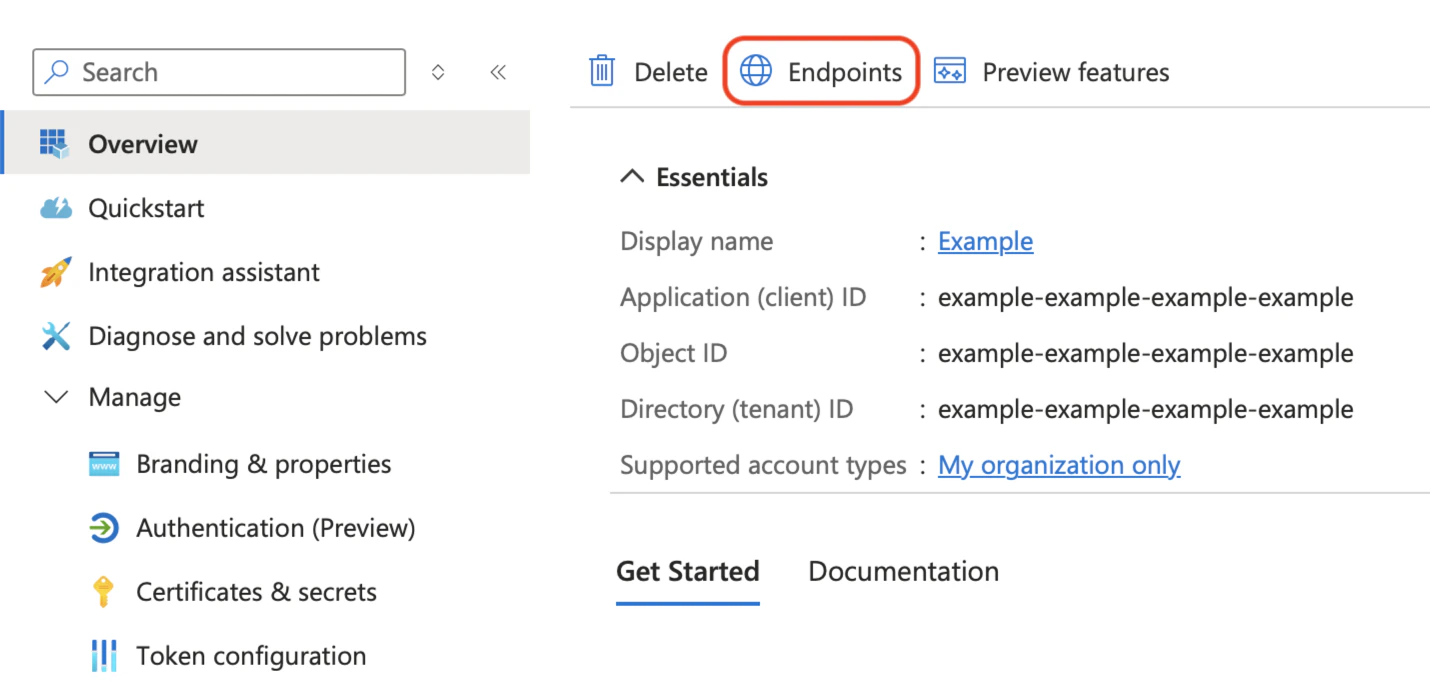
Select Overview on the left, then copy the value of the Application (client) ID, and make a note of it for later.
-
Click Endpoints at the top.
-
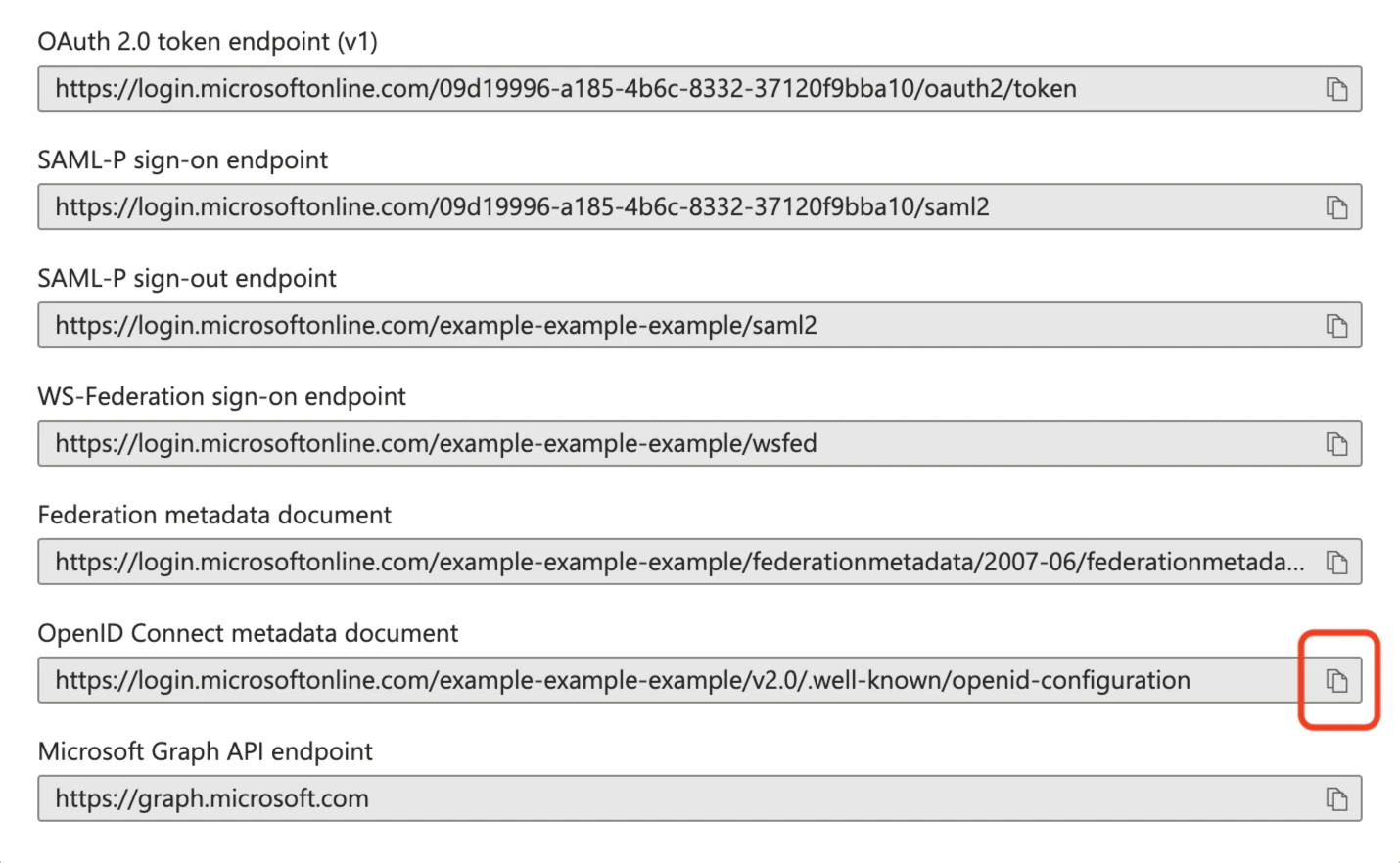
Scroll to the bottom of the page, and click the button to copy the OpenID Connect metadata document, and make a note of it for later.
- Continue the steps on the main document in Single sign-on (SSO) setup.