
This document covers step four of the Single sign-on (SSO) setup process, and shouldn’t be completed independently.
- Visit https://sso-check.matillion.com, and click Log in.
- Enter your email address, and click Log In.
-
If the general configuration is correct, you’ll see a page like this:
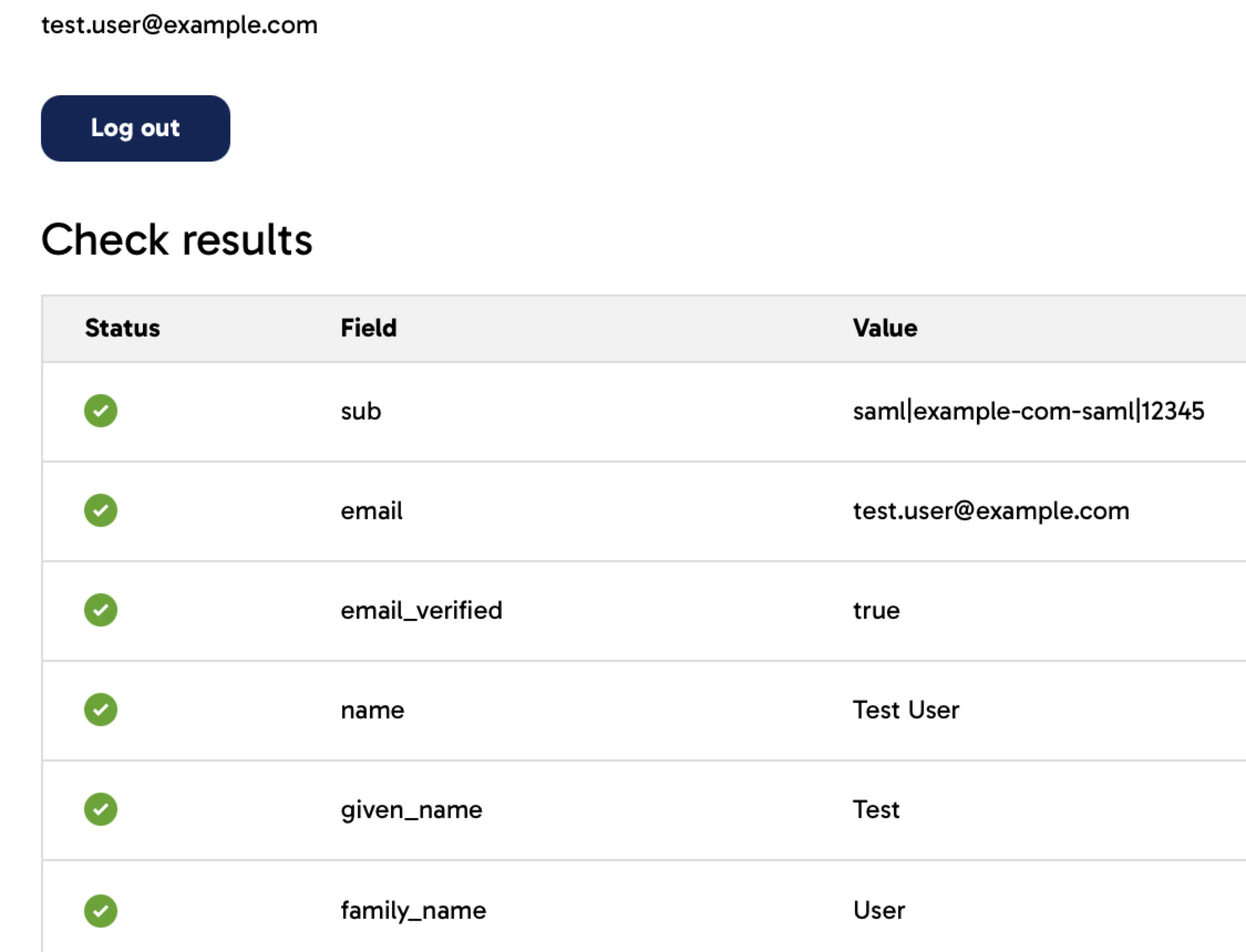
- If all six checkboxes on the left are green, continue to step five of the main process.
- If errors appear in the Value column, update the attributes or claims configured in your application to resolve them, then log out and back in after each change to re-test.
- If the screen above doesn’t appear and you instead encounter an error, there is likely a broader issue with your application’s configuration. Use the error message and your identity provider logs to identify the cause. After making any changes, log out and back in to re-test.