As AWS change details on their platform from time to time, the screenshots and steps in this tutorial may differ slightly from what you see in your AWS account. However, the overall process and concepts should remain the same.
Prerequisites
To complete this tutorial, you will need the following:- Access to an existing instance with appropriate API credentials. If you are not familiar with API credentials in , read Authenticating to the API.
- Access to an AWS account with permissions to create SQS queues and Lambda functions.
Messages
The Lambda function will expect SQS messages in a specific format to trigger the pipeline in . Each message must contain the following fields:- projectName: The project in which the pipeline is located.
- environmentName: The environment in which the pipeline will be executed.
- pipelineName: The name of the pipeline to be triggered.
- scalarVariables: Scalar variables required for the pipeline execution. This is optional, and can be omitted if no variables are needed.
- gridVariables: Grid variables used during pipeline execution. This is also optional and can be omitted if not needed.
Set up an AWS SQS queue
We will create a new SQS queue to receive messages that will trigger our pipelines. SQS supports two types of message queue: Standard and FIFO (First-In-First-Out). For this tutorial, we will use a FIFO queue. This allows us to preserve our message ordering, so we do things in the order they are received. A Standard queue could also be used, if that suits your particular scenario.- Log in to the AWS Management Console.
-
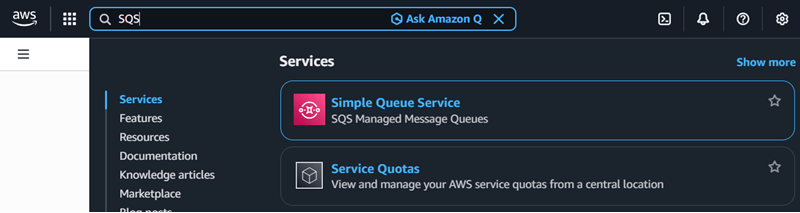
Navigate to the SQS service. If you don’t see the option on the Console home screen, use the search bar at the top to search for “SQS”.
- Click Create queue.
- Click FIFO as the queue type.
-
Give your queue a name. In this example, we are naming it
MatillionPipelineTrigger.fifo. Note that FIFO queue names must end with.fifo. - Leave the other settings as default, and click Create queue.
Create the Lambda function
We will create a new Lambda function that performs the following steps:- Receive and parse SQS messages. The function loops through each record in the queued batch of SQS messages, extracting project name, environment, pipeline, and any optional variables.
- Obtain an access token from . We will provide the function with a client_id and client_secret, which we obtain when setting up API credentials in . The function will use these to request an OAuth2 access token from the authentication server. This token is used to authorize API requests.
- Trigger the pipeline in . The function constructs a payload based on the SQS message, and sends a POST request to ‘s API to trigger the pipeline execution in the specified project and environment.
- Handle the response. Upon success, the function confirms the pipeline trigger. If an error occurs, it logs the details for further troubleshooting.
Create the function in AWS Lambda
To create this function:- Log in to the AWS Management Console.
-
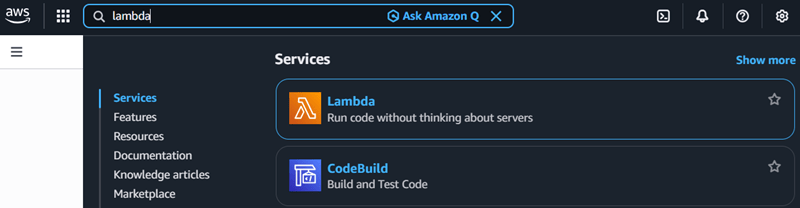
Navigate to the Lambda service. If you don’t see the option on the Console home screen, use the search bar at the top to search for “Lambda”.
-
Click Create function. This will open the Create function page.
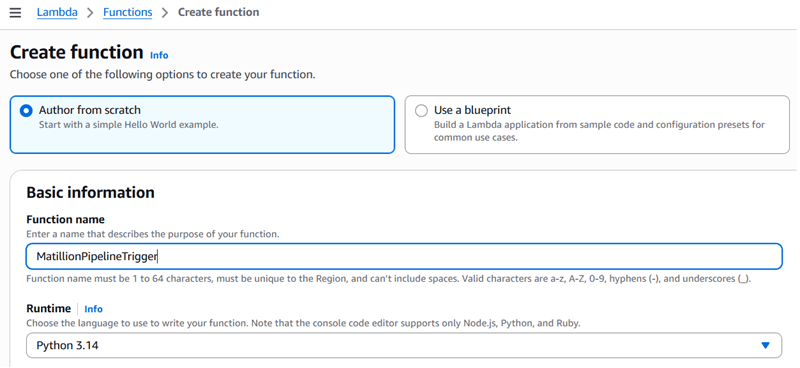
- Select Author from scratch.
-
Give your function a name. In this tutorial, we are using
MatillionPipelineTrigger. - Select Python 3.9 (or later) as the runtime.
- Leave the other settings as default, and click Create function. It may take a few moments for AWS to create the function.
Modify the function code
If you have downloaded the function code from the link above, open the file in your preferred code editor. If you are writing the code directly in the AWS Lambda console, copy and paste the code into the code editor there. You will need to make some changes to the code to get it working in your own environment. You will need to set some configuration variables in the code so the function will work in your own environment:MATILLION_REGION: the region that contains your account. For example, if your account is set up in the US, you will also need set the value tous1.client_id: your Matillion client ID. For security, this isn’t embedded within the script but is loaded from an environment variableMATILLION_CLIENT_ID. Ensure that the environment variable is set correctly.client_secret: your Matillion client secret. For security, this isn’t embedded in the script but it loaded from an environment variableMATILLION_CLIENT_SECRET. Ensure that the environment variable is set correctly.PROJECT_ID: the project ID that contains your target pipeline.PIPELINE_NAME: the name of the pipeline to be triggered.ENVIRONMENT_NAME: the name of the environment in which the pipeline will be executed.
agentId, executionTag, or versionName. You can also set scalar and grid variables directly in the code, if your use case requires it. The relevant section of the code looks like this:
Configure the Lambda function’s trigger
The final step is to configure a trigger for the Lambda function, so that it’s invoked whenever a new message arrives in the SQS queue we created earlier. To do this:- Open Lambda in the AWS Management Console.
-
Select the
MatillionPipelineTriggerfunction you created earlier. - In the Function overview section, click + Add trigger.
-
In the Trigger configuration panel, select SQS from the drop-down.
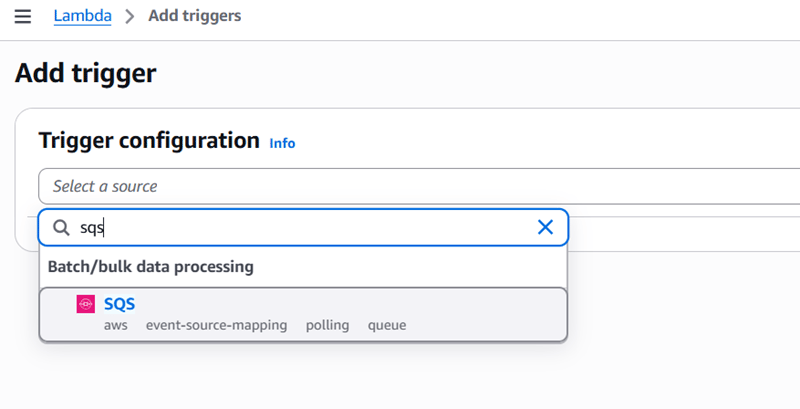
-
In the SQS queue field, select the SQS queue you created earlier,
MatillionPipelineTrigger.fifo. - Leave the other settings as default, and click Add.
Permissions
AWS automatically:- Grants Lambda permission to read from the queue.
- Creates an event source mapping.
Testing the setup
To test whether your queue and Lambda function are working correctly, you will need to send a test message to the SQS queue. Though there are many ways to send test messages to SQS (for example, using the AWS Management Console, AWS CLI, or any AWS SDK), for purposes of this tutorial we will trigger it from itself. For this, we will create a simple pipeline that uses an SQS Message component to send a message to the queue. We will also create a pipeline in that the Lambda function will trigger when it receives the message. This pipeline will perform a simple task that we can check to confirm that it was triggered successfully and our set up works—in this example, it will simply print the variable that we pass to it from the Lambda function. Of course, in a production scenario, you would replace this with your actual pipeline that performs the desired data processing tasks you need to trigger.Prerequisites
To create the test pipeline, ensure you have the following:- Set up Cloud provider credentials with AWS access in your environment.
- Ensure the credentials have permissions to send messages to SQS queues.
Create the test message pipeline
- Create a new orchestration pipeline in . Name it something like “SQS Trigger Test”.
- Add an SQS Message component to the pipeline.
-
Configure the SQS Message component with the following settings:
-
Region:
us-east-1(you can change this if your queue is in a different region). -
Queue name:
MatillionPipelineTrigger.fifo. -
Message: The JSON payload we’re sending to the queue. In this tutorial, we’re using:
- Message format: Plain.
-
Message group ID:
pipeline-trigger-group(required for FIFO queues).
-
Region:
Create the pipeline to be triggered
- Create a new orchestration pipeline in . Name it “Customer Data Load”, matching the pipeline name in the SQS message.
- Add a Print Variables component to the pipeline.
-
Configure the Print Variables component with the following settings:
- Variables to print:
name.
- Variables to print:
name variable that we pass to it from the SQS message. If the test is successful, we should see “Test Customer” printed in the task history when the pipeline runs.
Run the test
- Run the SQS Trigger Test pipeline to initiate the test by sending the test message to the SQS queue.
- Allow a few moments for the Lambda function to process the message and trigger the Customer Data Load pipeline.
-
Check that the Customer Data Load pipeline appears on the Your activity page in .