

This feature is available to customers on specific editions. Visit Matillion pricing to learn more about each edition.
- What was the data source?
- How has the data changed through data transformations?
- What is the final destination of the data?
- Audit and compliance: Quickly track data back to its source for governance and troubleshooting.
- Impact analysis: Understand how upstream data changes affect downstream processes. For more information, read Filtering data lineage.
- Faster debugging: Identify issues at the source when data isn’t behaving as expected.
Video example
Video
Video
Accessing data lineage
Lineage is collected for each dataset used in your pipelines. To access lineage:- Log in.
- In the left navigation, click Activity, then select Lineage from the menu.
- If you have previously used this feature, a list of tables will be displayed. Choose one to see lineage information.
- The Lineage viewer isn’t a full schema view of your cloud data warehouse; it shows only those datasets that you have used in running pipelines.
Supported data sources
Lineage is available for all orchestration and transformation pipelines. The following connectors are supported as data sources:- Google Sheets
- Gmail
- Jira Load
- SurveyMonkey
- MailChimp
- MariaDB Load
- Marketo Load
- Microsoft SQL Server Load
- Netsuite Query
- Oracle Fusion Cloud Financials Load
- PostgreSQL Load
- Salesforce Load
- Shopify Load
- SugarCRM Load
- X Ads Load
- LinkedIn Ads
- Pendo
- Pipedrive
- Slack
- Zendesk Talk
- Zendesk Ticketing
Using lineage
The lineage for a dataset is visually represented on a canvas in a diagram called a lineage graph. This graph depicts the various states the data undergoes as it moves through a transformation pipeline. The following example illustrates what you can expect to see in a transformation pipeline: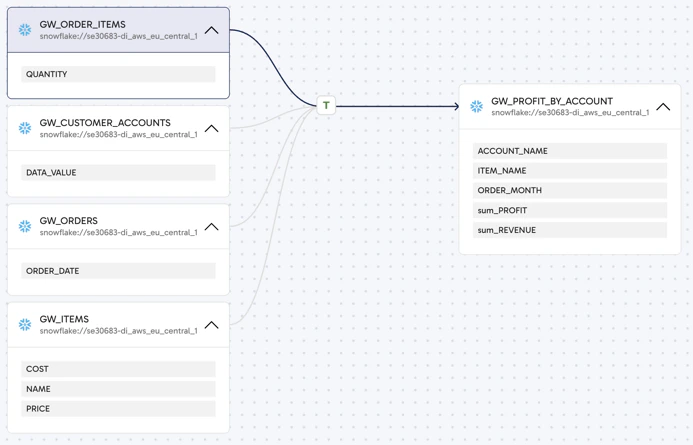
- Zoom in and out using the controls at the bottom-right.
- Drag the canvas around the window with your mouse.
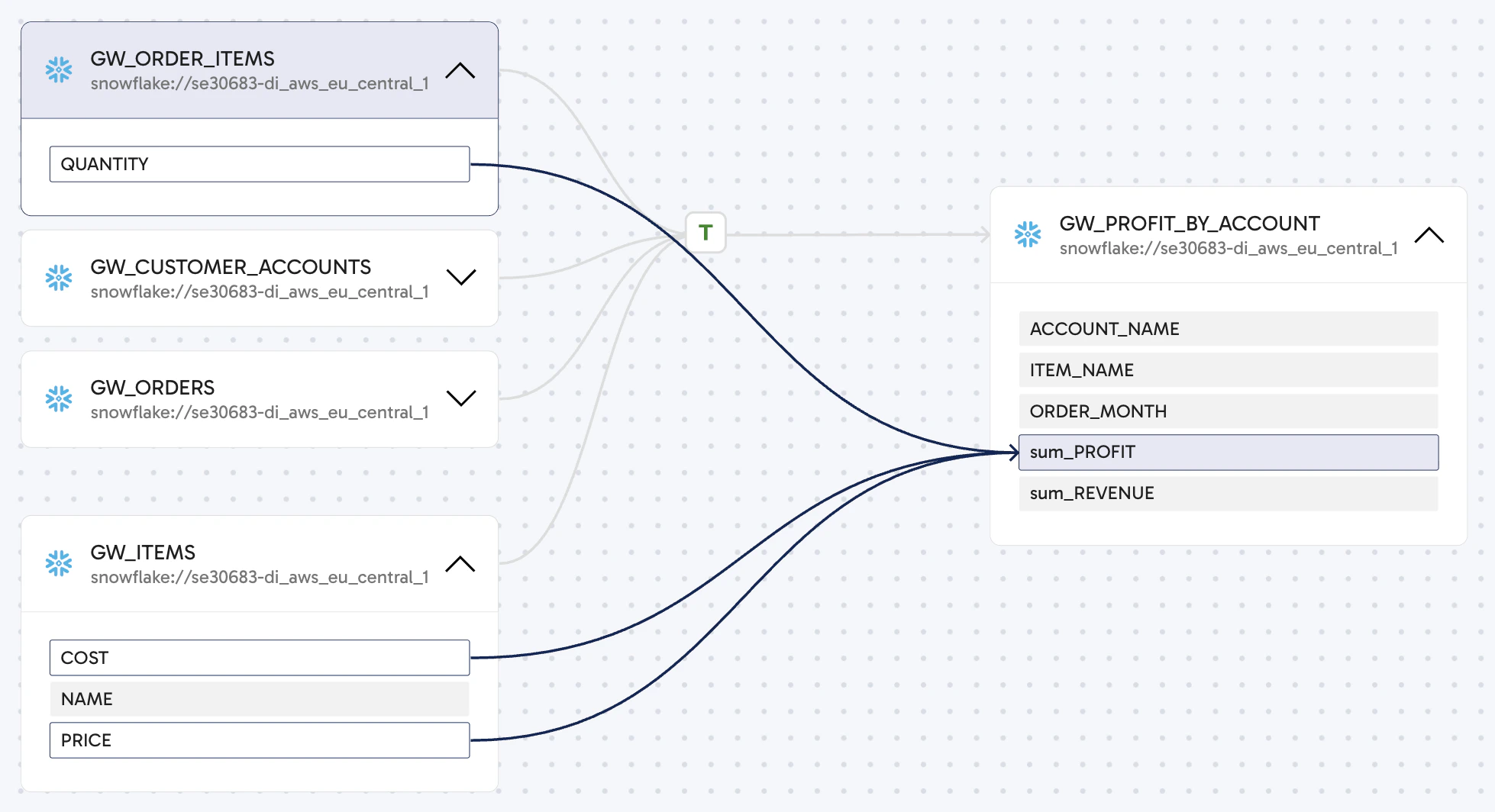
- Drag individual boxes (datasets) around the canvas to reorganize the view (the relationships between the datasets will remain unchanged).
-
Click a transformation icon, T, to open a panel giving you the following details:
- Name of the pipeline.
- Name of the project containing the pipeline.
- Status of the most recent pipeline run (SUCCESS, FAILURE).
- Date and time that the most recent pipeline run started and finished.
- Approximate duration of the most recent pipeline run, in seconds.
- The name of the user who most recently ran the pipeline.
- Click any dataset box to show information about that dataset in a panel on the right. This panel includes a Columns tab which shows the name and data type of every column in the dataset.
- Click the down arrow in any of the dataset boxes to expand the box, displaying every column in the dataset.
Filtering data lineage
Filtering data lineage views enhances the clarity of data flows in your pipelines. By applying filters to large datasets and pipelines, you can gain insights into the lineage without needing to view or load everything on the canvas. What can you use lineage for?- Upstream lineage: Quickly trace the origins of your data to perform root cause analysis, and understand how the dataset you’re analyzing is constructed.
- Downstream lineage: Perform impact analysis to see which datasets or columns will be affected if you make a significant change.
| Filter name | Description |
|---|---|
| Default | The lineage view is set to Default, where the critical path for your selected dataset is displayed, giving you the essential view of its lineage. |
| Upstream | This view displays relevant data and pipelines upstream of your dataset. |
| Downstream | This view displays relevant data and pipelines downstream of your dataset. |
| Complete | This view displays everything relevant to your dataset, both upstream and downstream. |
You can only select one filter at a time.